
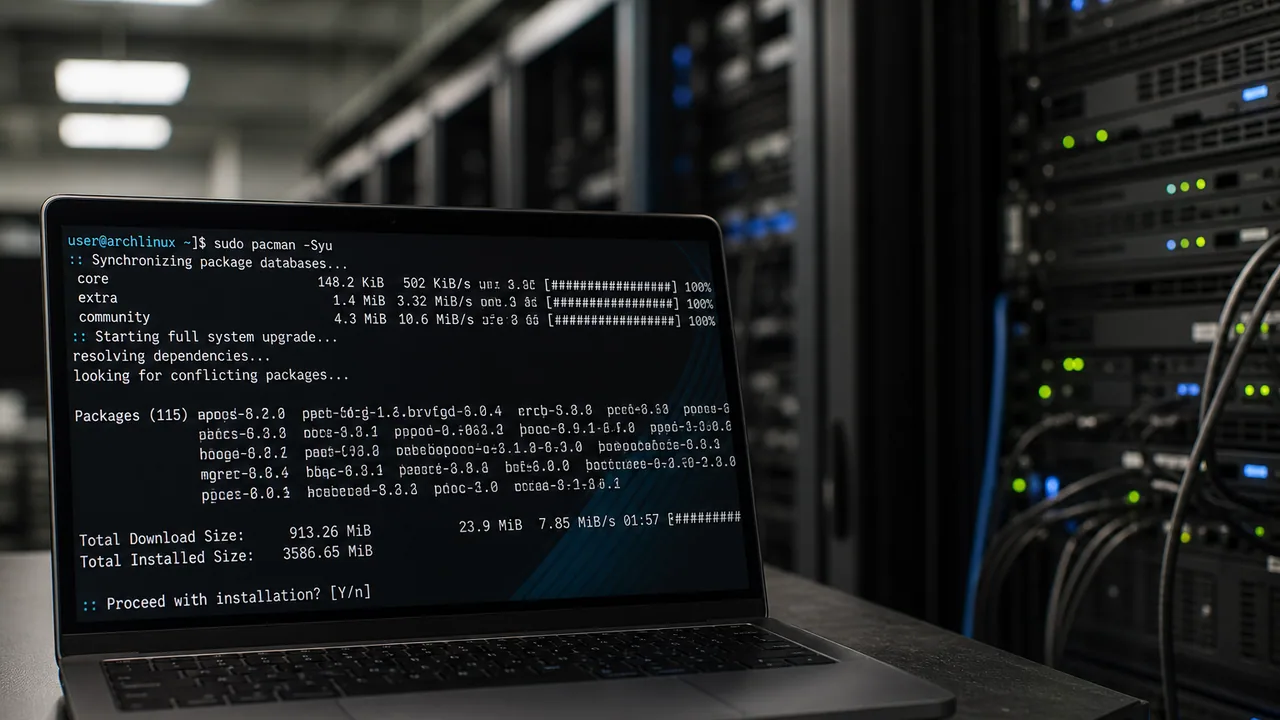
Arch expects you to update often and read before you type. Rolling release is great when you treat pacman -Syu as a deliberate maintenance task, not something you run mid-meeting on the only jump host.
1. Read the news first
Before upgrading, check Arch Linux News (and archlinux-contrib’s informant or similar if you use it). Manual intervention posts are not optional reading.
# quick local reminder if installed
pacman -Syu   # only after you have checked the news
2. Confirm where you are
hostnamectl
cat /etc/os-release
uname -r
Have a way back in if the graphical stack or network stack gets weird after a big mesa/kernel bump, especially on bare metal.
3. Sync and upgrade in one step
Arch’s supported full-system update is:
sudo pacman -SyuDo not get in the habit of pacman -Sy followed later by a partial upgrade. Partial upgrades are a classic way to break Arch.
If a keyring or mirror problem blocks the transaction, fix mirrors/keys first. Do not force through errors you do not understand.
4. AUR packages (if you use them)
Update official repos with pacman first. Then update AUR helpers separately (yay, paru, etc.) so a broken AUR build does not block critical system packages.
# example after pacman -Syu succeeded
yay -Syu
Pin or skip AUR packages that are known to lag after big repo moves.
5. Handle .pacnew / .pacsave files
After upgrades, config updates may leave .pacnew files:
sudo pacman -Qkk | head   # not a full audit, just a nudge
find /etc -name '*.pacnew' 2>/dev/null
Merge intentionally with diff / pacdiff (from pacman-contrib). Ignoring .pacnew for months is how services keep running on stale configs until they do not.
6. Reboot when needed
New kernel, major systemd, or graphics stack updates usually deserve a reboot:
uname -r
# compare to the kernel package version you just installed
sudo reboot
7. Validate
- Machine boots and networks
- Display manager / desktop (if any) still starts
- Containers, VMs, or services you rely on are healthy
- Disk space is fine; package caches grow if you never clean them
Optional cache cleanup when you are sure you do not need old packages:
sudo paccache -rBottom line
Check Arch news → pacman -Syu (no partial upgrades) → merge .pacnew files → reboot after kernel/stack bumps → verify. Arch is excellent when you respect the rolling model; it is unforgiving when you do not.