Share trip photos privately
Holiday photos are meant to be shared. A few settings on iPhone and in Google Photos keep the location of your home and your travel plans out of the pictures you post.

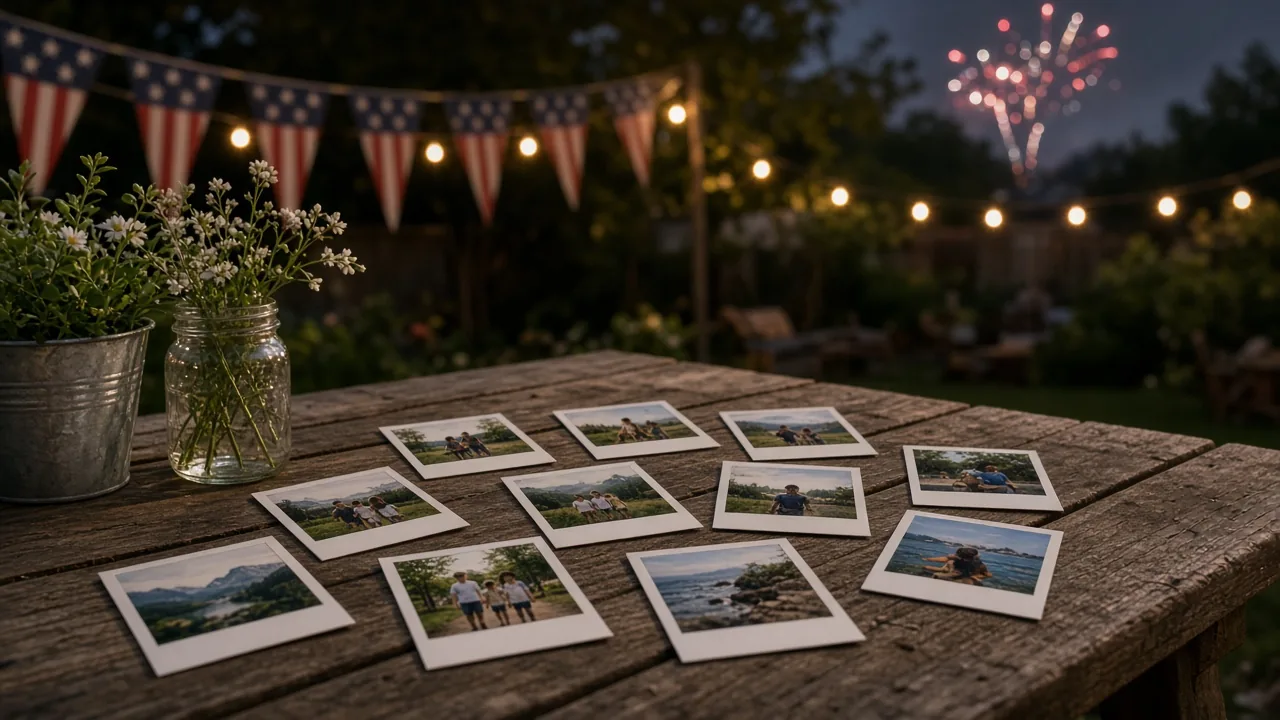
Happy Fourth of July. Between cookouts, parades, and fireworks, today is one of the most photographed days of the year. Sharing those pictures with family and friends is half the fun.
It is worth knowing that a photo can carry more than the picture. If your camera saves location, that information can travel with the file when you share it. That is great for your own memories and less great when it points strangers to your house or tells them you are away for the week.
Here is how to share freely without oversharing.
Why photo location matters
Phones can save where each photo was taken inside the photo file. Apple calls this location metadata. When you share a photo, that location can go with it unless you leave it out.
Most of the time that is harmless. But location in a photo can reveal:
- Your home address, from pictures taken in the yard or driveway
- Where your kids go to camp or school
- That your house is empty while you are on vacation
On iPhone: leave location out when you share
Apple’s Personal Safety guide covers how to manage location in Photos. The quick version:
- Open the photo in Photos and tap Share.
- Tap Options near the top of the share sheet.
- Turn off Location, then tap Done.
Check that the share sheet shows that location is not included before you pick who to send it to. This removes location from the copy you send. The original in your library keeps it, so you will need to do this each time.
You can also remove location from a photo in your library, and you can stop the Camera app from saving location for new photos in Settings > Privacy & Security > Location Services > Camera. Many people prefer to keep location on for their own albums and just strip it when sharing. Either approach is fine. Pick one on purpose.
In Google Photos: check shared album settings
Google explains in its help on photo locations that you can control whether location is shared in each shared album, link, or conversation.
For a shared album:
- Open the Google Photos app and go to the album.
- Tap Share, then Options.
- Turn Share photo locations on or off, then tap Done.
Two details from Google worth knowing:
- Partner sharing includes location details for every photo you share. If you use partner sharing, that is by design.
- Google Photos cannot remove a location your camera added. It can edit or remove locations it estimated or that you added by hand. To keep camera location off new photos, change the setting in your phone’s camera app.
The background tells a story too
Google makes a good point: even if you hide location, people can guess where a photo was taken from landmarks. Before you post publicly, take a quick look at what is in the frame:
- House numbers and street signs
- License plates
- Mail or packages with your address
- School or camp names on shirts and buses
Crop or retake if something gives away more than you want.
Post after you get home
The simplest privacy habit for trips is timing. Share photos from the beach with family in a private album now, and post publicly after you are back. A live play-by-play of your week away tells anyone watching that your home is empty.
Use private albums for family
Shared albums in iCloud or Google Photos are a nice middle ground. Grandparents see everything right away, and you decide who is invited. Review the member list once in a while, especially on older albums.
And make sure the originals are safe. A shared album is not a backup. If you have not set that up yet, start with backing up your phone photos.
Do this, not that
Do
- Turn off location when sharing photos outside the family.
- Check the location setting on shared albums.
- Post vacation photos publicly after you return.
Don’t
- Assume photos are stripped of location by default.
- Post photos that show your house number or license plate.
- Treat a shared album as your backup.
Bottom line
Share the fireworks, the burgers, and the sparklers. Just leave the location out when photos go beyond family, glance at the background before posting, and save the public highlight reel for when you are home.