Tutorial
Back up your phone photos
Summer photo season is starting. Here is how to turn on iCloud Photos or Google Photos backup, why that sync is not the whole plan, and how to keep a second copy you control.

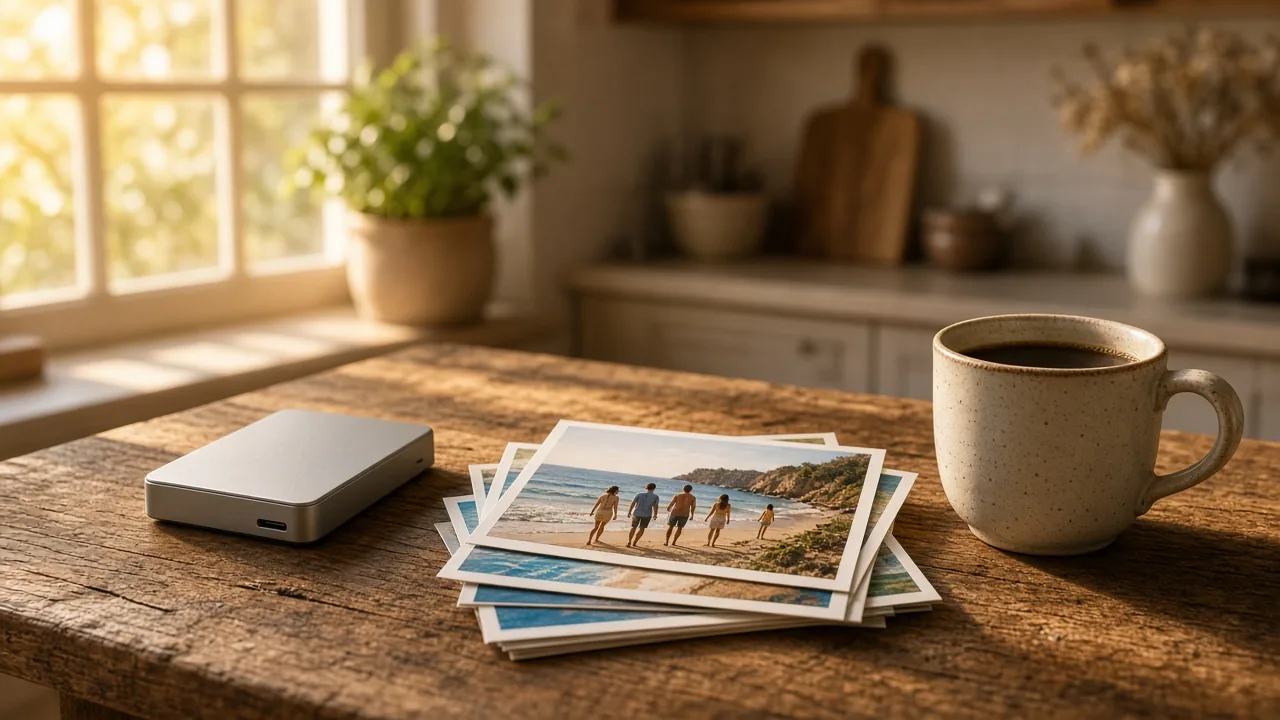
Memorial Day weekend is behind us, which means graduations, cookouts, beach trips, and a camera roll that is about to double in size. Phones are very good at taking pictures and very bad at being the only place those pictures live. A dropped phone, a theft, or a trade-in done in a hurry can take years of photos with it.
The good news is that both major phone platforms make the first copy easy. The part people skip is the second copy.
Step 1: Turn on the built-in photo backup
On iPhone: iCloud Photos
Apple’s iCloud Photos keeps your library in iCloud at full resolution and in sync across your Apple devices.
- Open Settings and tap your name.
- Tap iCloud, then Photos.
- Turn on the sync switch for this iPhone.
Use the same Apple Account on every device you want in sync. The first upload can take a while on a large library, so leave the phone on Wi-Fi and plugged in overnight.
If your phone is short on space, Apple’s Optimize Storage option keeps smaller versions on the phone while the originals stay in iCloud. That is fine for space, but remember it means the phone no longer holds full copies of everything.
On Android (or iPhone): Google Photos
Google’s backup steps are short:
- Open the Google Photos app and sign in.
- Tap your profile picture or initial at the top right.
- Tap Photos settings, then Backup.
- Turn Backup on.
Google notes you can back up to only one Google Account at a time, so pick the account you plan to keep for years, not a throwaway.
Step 2: Check that the backup actually finished
Turning a switch on is not the same as having a backup. Before you trust it:
- Google Photos shows a backup status at the top of your library, such as “Backup complete” or “Backup paused.”
- iCloud Photos shows upload progress in the Photos app. If it says uploads are paused, that usually means low battery, low storage, or a cellular connection.
Then open the web version (photos.google.com or iCloud.com) on a computer and spot check a few recent pictures. If they are there, the pipe works.
Step 3: Know what sync does when you delete
This is the part that surprises people. Apple says plainly that when you delete a photo on one device using iCloud Photos, it is deleted everywhere. Deleted items sit in Recently Deleted for 30 days, then they are gone.
That is the difference between sync and backup. Sync keeps every device matching, including your mistakes. Apple’s own page recommends keeping backup copies of your library, and that is the right instinct.
Step 4: Watch your storage
Free tiers fill fast once video is involved.
- Google says every Google Account includes up to 15 GB of storage shared across Gmail, Google Drive, and Google Photos. Photos backed up in either Original quality or Storage saver count against it.
- iCloud storage is shared across your iCloud data, including device backups and photos.
When storage runs out, backups quietly stop. If you see a “storage full” warning, either clean up or pay for more. Do not ignore it for the whole summer.
Step 5: Make a second copy you control
The classic 3-2-1 idea applies to photos too: more than one copy, on more than one kind of storage, with one copy away from the phone and its cloud account. And like any backup, it only counts once you have checked that you can get files back out.
A simple household version:
- Mac users: In the Photos app settings, the iCloud tab has a Download Originals to this Mac option. With that selected, your Mac holds full copies, and your Mac’s own backup can protect them.
- Google Photos users: Download your library periodically with Google Takeout, then copy it to an external drive.
- Everyone: Put that external drive somewhere other than next to the computer once you are done. A drawer at a relative’s house counts.
Do this a few times a year. Right after a big trip is a natural moment.
Do this, not that
Do
- Turn on one built-in backup and confirm it completes.
- Keep a second copy on a drive or computer you control.
- Look at Recently Deleted before you empty it.
Don’t
- Trade in or wipe a phone until you have confirmed the photos are in the cloud and on a second copy.
- Assume “synced” means “backed up.”
- Let a storage warning sit for months.
Bottom line
Turn on iCloud Photos or Google Photos backup today, check that it says it finished, and then make one more copy you can hold in your hand. Ten minutes now beats explaining to the family that the graduation pictures were only on the phone that went in the lake.