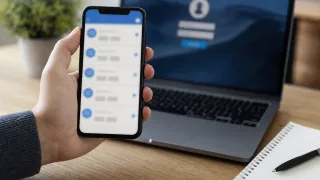
Start a home password manager
How a household can move off reused passwords: pick a vault, set a long passphrase, and migrate email and banking first.


Most people do not have a password problem because they are careless. They have a password problem because no one can remember a unique 16-character secret for every site. The usual workaround, one favorite password plus a year or a pet’s name, is exactly what CISA tells people to stop doing.
CISA’s password guidance is straightforward: make each password long, random, and unique, and use a password manager to generate and store them. This article is a home setup guide, not a review of every product and not a plan for a 20-person office. If you already finished a New Year tech account reset, this is the habit that makes the reset stick.
What a password manager actually does
A password manager is an app (and usually a browser extension) that:
- Creates a long, random password when you open a new account
- Stores it in an encrypted vault
- Fills it on sites and apps you unlock
- Warns you when a password is weak or reused
You remember one strong passphrase for the vault itself. Everything else lives in the manager. CISA notes that trusted reviewers such as Consumer Reports compare options, which is a better starting point than a random search ad.
The manager is only as safe as that master passphrase and the second step you put on the vault. Treat the vault like a bank account, not like a notes app.
Choose a long passphrase for the vault
Do not use a short, clever password for the manager. CISA describes a memorable passphrase of four to seven unrelated words, and says you can add spaces, odd spelling, or a number or symbol if you want it stronger. A phrase you can type on a phone, but that is not a song lyric or a family motto printed on a mug, is the goal.
Write that passphrase down once, on paper, and put the paper with other important documents until you can type it from memory. Then shred the paper if you are confident you will not forget it, or keep it in a locked place if you would rather have a fallback. Do not store the only copy in an email to yourself.
Turn on the password manager’s own multifactor authentication on day one, using an authenticator app or a security key if it offers one.
Install it on the devices you already use
Pick one reputable manager and install it on your phone and your usual computer. Sign in, confirm the vault unlocks, and enable the browser extension only in the browser you actually use. If more than one adult in the house needs access, use the official family or sharing feature the vendor documents. Do not share the master passphrase in a text message.
Stay away from “free password wallet” apps that have almost no public documentation, no recognizable company, and reviews that all arrived on the same day. You are about to store your email and bank logins there.
Move the accounts that matter first
You do not need to migrate 200 logins in one evening. Start with the accounts that can reset or drain everything else:
- Primary email
- Banking and credit cards
- Apple Account, Google Account, or Microsoft account (whichever holds your phone backup or photo library)
- Payroll, tax, and insurance portals
- The shopping sites you actually use
For each one, open the live site the normal way (not a link from an old email), change the password, let the manager generate a unique string, and save it. If the site still allows a short password, CISA’s advice is to use the strongest password it will accept, and ask the company why the limit exists.
After those are unique, you can let the manager capture other logins the next time you sign in naturally. The leftover reused passwords will shrink over a couple of weeks instead of in one painful sitting.
What not to do
- Do not keep a second, outdated spreadsheet of the same passwords in cloud storage “just in case” unless that file is itself protected and you have a reason to maintain it.
- Do not store the vault password in the same browser’s simple password list, which defeats the separation you just created.
- Do not refuse a passkey when a site offers one later. A manager and a passkey can coexist. The manager still helps with the many sites that only accept passwords.
- Do not skip a second sign-in step on email just because the password is now long. The MFA habit still matters if the vault or a session is ever stolen.
A word on browser-saved passwords
Built-in browser password lists are convenient, and for a single personal computer they are better than reuse on a sticky note. They are still a weaker plan than a dedicated manager if you use more than one browser, more than one device, or share a household computer. If you start a manager, migrate the important logins out of the browser list and stop adding new ones there so you do not end up with two half-updated collections.
Bottom line
A home password manager is the practical way to follow CISA’s rule that every account should have a long, unique password. Pick a reputable vault, protect it with a long passphrase and a second sign-in step, install it on your phone and computer, and move email and money first. The rest of your logins can follow as you use them. That is a smaller project than it sounds, and it removes the most common way a single shopping-site breach becomes a hijacked inbox.