One UI 9 is rolling out: what Galaxy owners should install
Samsung began the official One UI 9 rollout on September 16, 2026 for Galaxy S26 phones after Fold8 and Flip8. Features worth caring about, uneven regional timing, and install steps for home users.
 Michael Narehood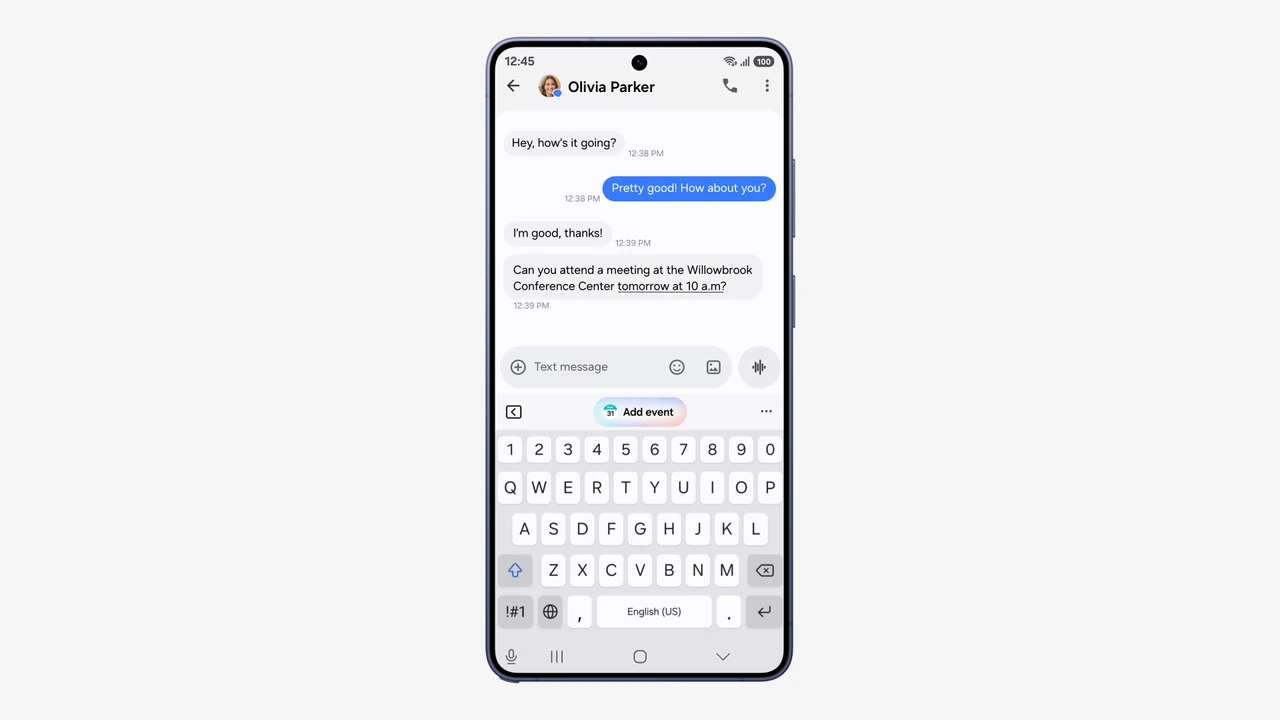
Image: Samsung official One UI 9 rollout marketing art (Samsung Newsroom).
Samsung says the official One UI 9 rollout began September 16, 2026, starting with the Galaxy S26, S26+, and S26 Ultra after the software debuted on Galaxy Z Fold8 Ultra, Fold8, and Flip8. If you own a recent Galaxy phone, this is the update wave to watch, not another beta rumor thread.
Regional timing is uneven. Some markets have floated later September dates for older flagships (for example, Thailand coverage pointing around September 28 for S25 / Fold7 / Flip7 lines). Treat those as local calendars, not a global promise. Your phone’s Software update screen is the source of truth.
Features worth caring about (normal-person list)
Skip the full brochure. These are the pieces from Samsung’s announcement that matter for everyday use:
- My FanCam: pick a person in a recorded video and keep them centered while the scene moves. Handy for kids’ performances, dance floors, or a messy sports clip you want to share without heavy editing.
- Now Brief editable cards: choose what shows up in your daily brief (health, weather, video, and similar). Make the summary yours instead of accepting whatever the phone invents.
- Warranty and Care: warranty status, self-diagnostics, repair estimates, Samsung Care+ management, and service booking inside Settings. Useful when you are not sure whether the phone is still covered.
- Now Nudge: context-aware suggestions in more places (for example, turning a text about plans into a reservation or saved location without leaving the chat).
- Interpreter Thread View: follow translated conversations with earlier exchanges easier to reference, plus faster conversation-mode translation on supported setups.
- Document Scan improvements: better luck with curved book pages and folded corners, plus cleaner Finger Eraser results on large screens.
- Voice Recorder summaries: clearer headings and tables so you can skim a recording without replaying the whole thing.
- Security Brief: malware alerts, unknown-source apps, and permission noise surfaced into Now Brief.
- Privacy Alerts: on-device checks for risky background permission behavior on a long list of recent Galaxy phones and tablets.
- Scam Detection expansion: call protection landing in more countries and languages (Samsung called out Japan, Canada, and India in the footnotes for this wave).
Creative Studio’s event-based image prompts are cute. They are not why you should interrupt dinner to update.
Before you install
- Charge past 50% and stay on Wi-Fi. Large One UI packages dislike a thin cellular pipe.
- Back up what you care about. Samsung Cloud, Google Backup, or a computer copy of photos you cannot replace.
- Free a few gigabytes if storage is tight (Settings → Battery and device care → Storage, wording can vary by One UI version).
- Note your Samsung account password and screen lock. Interrupted installs sometimes ask again.
- Expect a staged rollout. Friends on the same model in another country may see the update days earlier or later. That is normal.
Install and check steps
- Open Settings → Software update (sometimes nested under System).
- Tap Download and install (or Check for updates).
- If One UI 9 appears, download on Wi-Fi, keep the phone powered, and install when ready.
- Let the phone reboot. Do not force-restart mid-install unless Samsung Support tells you to.
- After setup screens, confirm the version:
- Settings → About phone → Software information
- Look for One UI version 9 (build details will vary by model)
- Spend five quiet minutes on Wi-Fi so apps can update and Galaxy AI features can finish first-run downloads.
If nothing appears yet:
- Wait and check again later in the day or week.
- Confirm you are not on a carrier build that lags unlocked models.
- Avoid random “update.zip” sideloads from forums. Official OTA is the safe path for home phones.
After you are on One UI 9
- Open Now Brief and prune cards you do not want.
- Glance at Warranty and Care once so you know what coverage the phone thinks you have.
- Review Security Brief / Privacy Alerts the first time they appear instead of dismissing them forever.
- If you travel or take cross-language calls, try Interpreter on a low-stakes conversation before you need it in a rush.
- Re-check battery behavior for a day. Major UI jumps sometimes need a full charge cycle before estimates look sane.
Do not do that
- Do not factory reset “to make One UI 9 cleaner” unless you have a real failure and a fresh backup.
- Do not install mystery APK updaters from search ads.
- Do not assume every Galaxy AI footnote works in your country and language on hour one. Samsung’s own notes say availability varies.
- Do not panic if your S25 or Fold7 is still quiet while S26 phones update. Staged waves are how Samsung ships.
Bottom line
Samsung’s One UI 9 official rollout started September 16, 2026 on Galaxy S26 / S26+ / S26 Ultra after Fold8 and Flip8. The useful everyday pieces are FanCam, editable Now Brief cards, Warranty and Care, Now Nudge, Interpreter Thread View, better document scans, clearer voice summaries, and stronger security/privacy surfaces. Charge up, back up, install from Settings → Software update, confirm One UI 9 under Software information, and treat regional dates for older models as approximate until your own phone offers the package.