Guest and IoT Wi-Fi at home: keep visitors and gadgets off the main network
How to use your router's guest or IoT Wi-Fi so visitors, smart plugs, and cameras cannot reach the laptops, NAS, and printers on your main SSID.
 Michael Narehood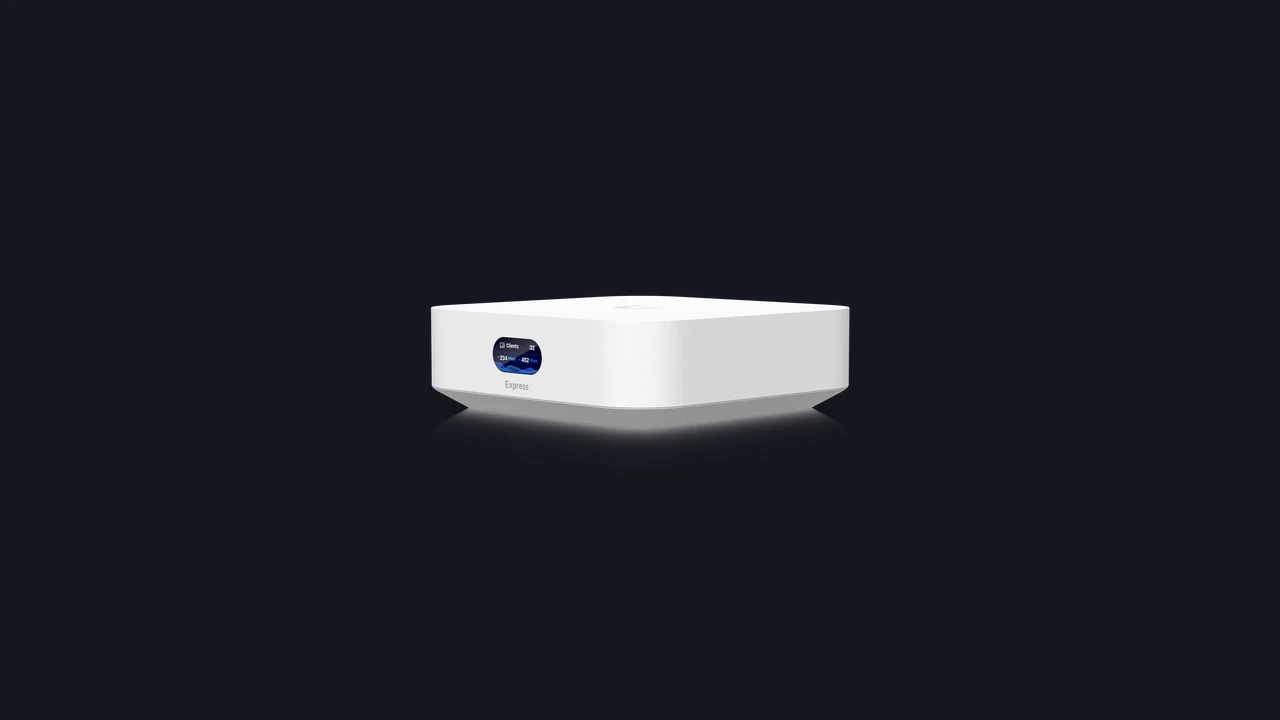
Image: UniFi Express product photo (Ubiquiti).
Your main Wi-Fi password ends up on the fridge, in a text thread, and on every smart plug you ever set up. That is fine for convenience. It is a poor security boundary. Visitors only need the internet. Cameras and light bulbs rarely need to talk to the laptop that holds tax returns.
This piece is for a normal household router. It is not about retail payment terminals or office SSIDs. If you want the office framing, we already published guest Wi-Fi that will not expose the office. Same idea, different audience.
What “separate Wi-Fi” actually means at home
Most consumer and prosumer routers let you turn on a guest network: a second name (SSID) and password. Better gear also offers an IoT or secondary LAN. The goal is simple:
- Devices on guest or IoT Wi-Fi get internet (when they need it)
- Those devices cannot open shares, printers, or admin pages on your main network
- Your phones and laptops stay on the main SSID for printing, NAS access, and casting when you want that
You do not need enterprise VLANs to get most of the benefit. You need the guest toggle, a different password, and a quick test that isolation actually works.
Router vendors document this in plain language. See Google Nest Wifi guest network help, TP-Link guest network notes, or your own brand’s “guest Wi-Fi” article. The labels differ. The job is the same: wall off strangers and gadgets.
Who belongs where
Main Wi-Fi: phones, tablets, and computers you trust; game consoles you want on the LAN; a printer you intentionally share; a home NAS you use daily.
Guest Wi-Fi: friends, babysitters, contractors, and anyone who only needs a browser.
IoT / secondary Wi-Fi (or the same guest SSID if you only have one extra): cameras, doorbells, smart plugs, bulbs, speakers that only need the vendor cloud. Pair this with our home IoT cameras and NVRs habits if you run recorders.
If your router only offers one guest SSID, put both visitors and IoT there. Perfect segmentation is optional. Getting gadgets off the trusted SSID is the win.
Turn it on and prove it
- Open the router admin page (often on a sticker, or via the vendor app). Enable Guest Wi-Fi. Give it a name that is obvious, like
YourHouse-Guest, not a cute joke that confuses relatives. - Set a different password from the main network. Share the guest password freely. Guard the main one.
- Enable AP or client isolation if the UI offers it. That stops guest devices from scanning each other.
- Confirm “guest cannot access local network” (wording varies). Leave that on.
- Join a phone to guest Wi-Fi and try to open your NAS web UI, a Windows share, or the printer by IP. Those attempts should fail. Then load a normal website. Internet yes, LAN no.
- Move IoT devices to guest or IoT Wi-Fi one at a time. Re-pair in the vendor app if the device forgets the old SSID.
- Keep router firmware current. A guest feature on ancient firmware is still worth using; updates close the holes that make remote takeover easier.
If you are rebuilding coverage at the same time, UniFi whole-home Wi-Fi is one path for stronger radios and cleaner SSIDs. The segmentation habit still matters on any brand.
Password and sharing habits
- Put the guest password on the fridge magnet. Rotate it when a long-term guest relationship ends or when you suspect it leaked widely.
- Keep the main password in your password manager. Do not text it to every delivery person.
- Prefer WPA2 or WPA3 personal as your router documents. Skip open networks at home.
- If kids need a filtered network, that is a separate discussion (DNS filtering, profiles). Do not solve it by giving every toy the main password.
Do not do that
- Do not run one flat SSID for visitors, cameras, and the family NAS “because it works.”
- Do not disable guest isolation so Chromecast from a guest phone can reach a living-room stick. Use the main SSID for household casting, or accept the tradeoff consciously.
- Do not port-forward random IoT admin pages to the internet to “make setup easier.”
- Do not reuse the main Wi-Fi password as the guest password.
- Do not assume the guest SSID is isolated without the phone test above. Some older routers labeled “guest” still bridged to LAN.
Bottom line
Guest and IoT Wi-Fi are the simplest home network upgrade that still pays rent. Visitors get internet. Gadgets get a pen. Laptops and NAS stay on the trusted SSID. Turn the feature on, use a different password, confirm a guest phone cannot open local shares, and move cameras and plugs off the main network. That is enough structure for most houses without buying a rack full of switches.