Home IoT cameras and NVRs: keep them off your main Wi-Fi
A home-reader guide to doorbell cams, Wi-Fi cameras, and small NVRs: change defaults, skip UPnP port forwards, segment guest or IoT Wi-Fi, and prefer vendor apps or VPN over exposing the recorder.
 Michael Narehood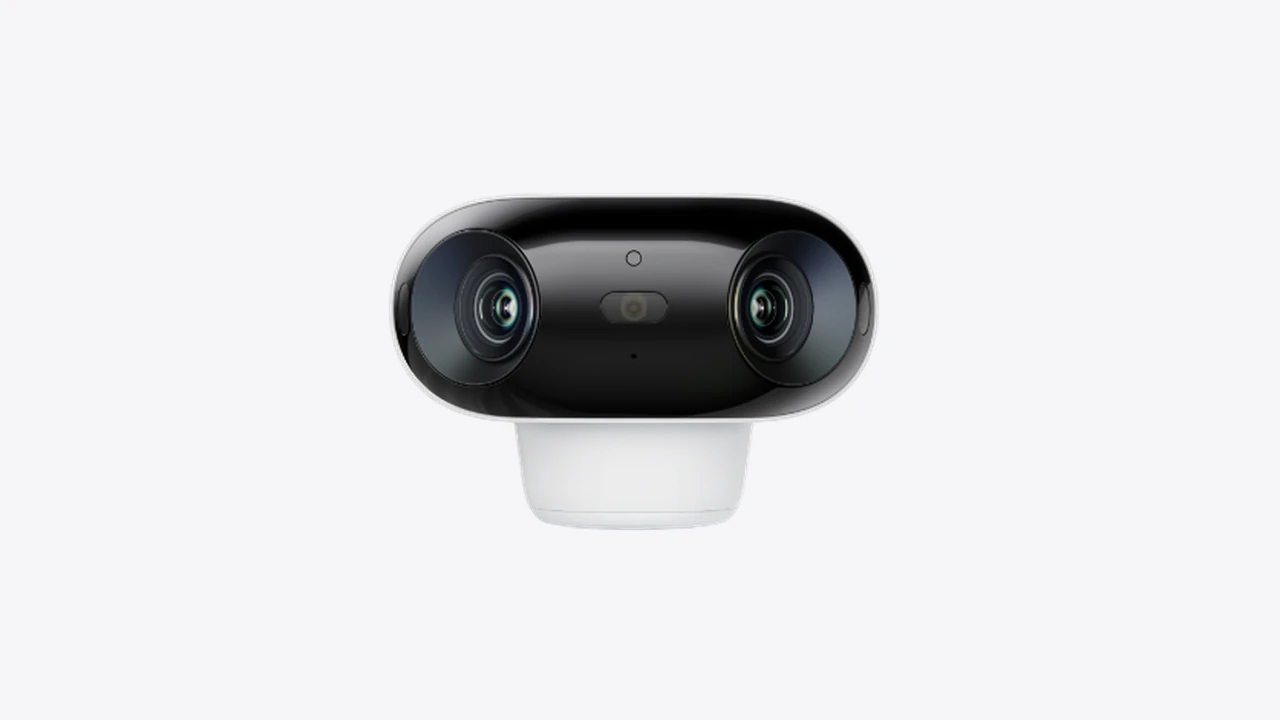
Image: Reolink Argus product photo (Reolink).
A doorbell cam, a few backyard cameras, and a little network video recorder (NVR) feel like “security gear.” On the network they are still computers. They run firmware, open ports, talk to cloud services, and often ship with weak defaults. If they share the same flat Wi-Fi as your laptops and phones, a cheap camera becomes a stepping stone into the house.
This is a practical home setup guide. It is not a brand shootout and not an office LAN design.
What usually goes wrong
Default passwords. Many cameras and NVRs still start with a published or blank admin password. Leave that alone and remote scanners will find you.
UPnP and “easy remote access.” Universal Plug and Play can punch holes through your router without you noticing. Vendors love one-click remote viewing. Attackers love the same holes. Consumer router makers document guest networks and remote-access tradeoffs for a reason; see CISA’s home network and IoT guidance and your router’s own help for guest or IoT SSIDs.
Flat networks. Camera, phone, NAS, and laptop on one SSID means anything that lands on the camera can try to talk to everything else.
Abandoned brands. A $30 no-name camera that never gets firmware updates is a long-term liability. Prefer vendors that still publish security advisories and update paths.
Put cameras on a guest or IoT network
Most home routers offer a guest Wi-Fi (or a second SSID). Use it for cameras, plugs, bulbs, and the NVR’s management radio if it is wireless. Keep phones, laptops, and the family NAS on the main network.
What you want from that guest or IoT SSID:
- Client isolation (devices cannot talk sideways to each other) when the router offers it
- No access to the main LAN for guest clients
- Internet access only if the cameras need a vendor cloud (many do)
If you run a more capable home setup (for example UniFi), you can do the same idea with a dedicated IoT or camera network. Our UniFi whole-home Wi-Fi notes cover the coverage side; the security habit is the same: cameras do not sit on the trusted SSID.
Wired NVRs still belong on the isolated network if you can. Plug the recorder into a LAN port that lands on the IoT VLAN or into a cheap switch fed only from that segment, not into the same unmanaged switch as your desktop.
Remote viewing without opening the NVR to the world
Prefer the vendor’s official app and cloud path when you trust that vendor and keep the account locked down (unique password, MFA). That is usually safer than port-forwarding TCP 80/443/554 straight to a recorder.
Prefer a VPN into your house if you self-host viewing and care about not publishing the NVR. WireGuard or the VPN your router vendor documents is enough for most households. You connect, then open the local viewer. You do not advertise the recorder on the public internet.
Avoid “DMZ host” and wide port forwards to the NVR. If a setup wizard insists on UPnP, turn UPnP off on the router after you finish local setup, then use cloud or VPN instead.
Day-one checklist
- Change every default password on the camera, NVR, and any companion app account before you mount anything outdoors.
- Create or enable a guest / IoT Wi-Fi and join the cameras there. Confirm a phone on guest Wi-Fi cannot open your NAS or printer on the main network.
- Disable UPnP on the router once local viewing works.
- Turn off unused services on the NVR (Telnet, anonymous RTSP, guest accounts you will never use).
- Check for firmware on day one and again when the vendor announces an update. If the brand has gone silent for years, plan a replacement.
- Lock the cloud account that receives live views: MFA, recovery codes offline, no reused passwords.
- Decide who can view. Family members get their own accounts when the app allows it. Shared logins make lockouts and breakups messy.
Do not do that
- Do not put cameras on the same SSID as the laptop that holds tax PDFs and password vaults.
- Do not port-forward the NVR “just for a weekend trip” and forget it.
- Do not leave the admin password printed on a sticker on the bottom of a porch camera.
- Do not buy the cheapest abandoned SKU because the listing said “AI security.”
- Do not assume “it has a green lock icon in the app” means the LAN side is segmented.
Bottom line
Home cameras protect the driveway. They should not be a soft path into everything else you own. Put them on guest or IoT Wi-Fi, kill UPnP and lazy port forwards, change defaults on day one, and view remotely through a vendor cloud you trust or a VPN you control. Treat the NVR like a small server, because that is what it is.