iOS 27: the few features worth caring about
iOS 27 shipped with a long feature list. Here is the ruthless triage for normal iPhone users: what to try, what to join a waitlist for, and what to ignore for now.
 Michael Narehood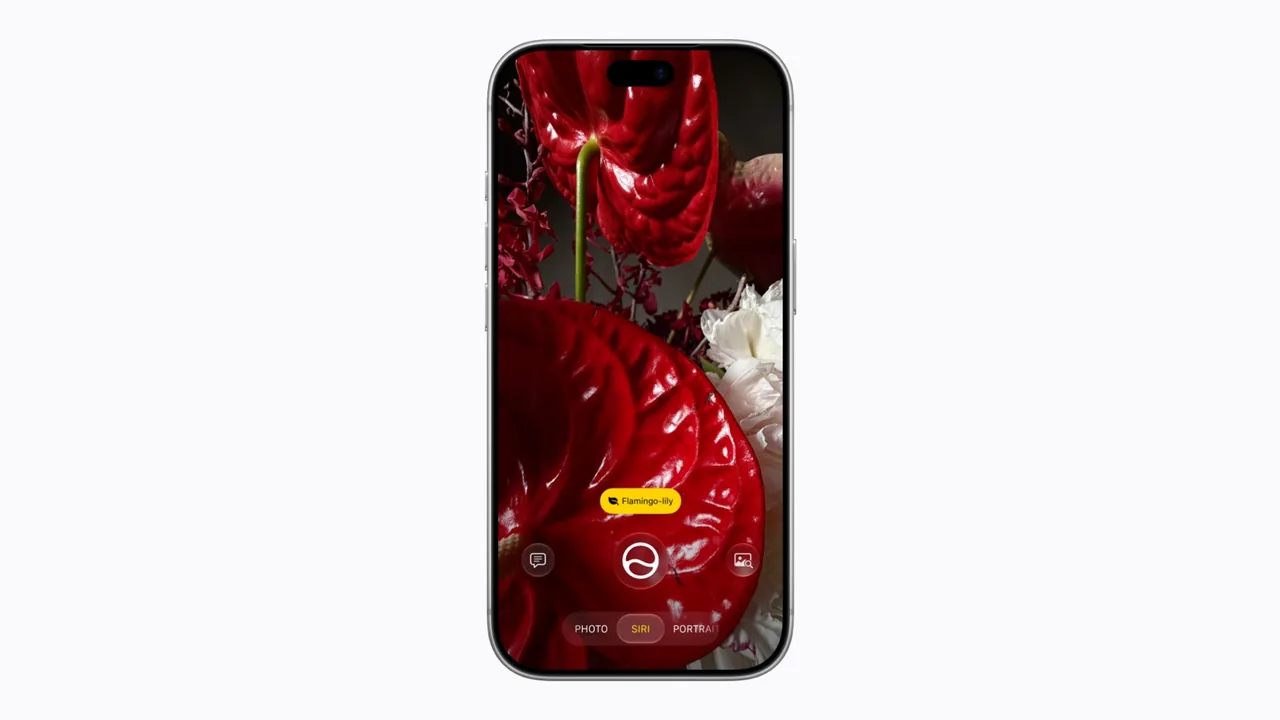
Apple released iOS 27 on September 14, 2026. The marketing page is a firehose. Most roundups just dump every toggle into one list and call it coverage.
This piece is the opposite. If you already installed the update (or you are about to), here is what a normal iPhone user should actually try, enable, or wait on. Everything else can sit on the skip list until it matures.
For the install checklist, use our iOS 27 update day guide. For the day-one overview, see iOS 27 is out today. Official feature language lives in Apple’s major OS availability Newsroom post and the Siri AI Newsroom post.
First reality check: iOS 27 vs Siri AI
These are not the same gate.
iOS 27 itself lands on a wide range of phones. Independent reporting (including Ars Technica and 9to5Mac) puts support at iPhone 11 and later. You can be on a perfectly fine older phone, get the OS update, and still miss the AI headline.
Siri AI and the newest Apple Intelligence wave need a supported Apple Intelligence phone. Apple’s Apple Intelligence requirements list iPhone 16 models or later, iPhone 15 Pro, iPhone 15 Pro Max, and iPhone Air, with matching device and Siri language settings. Older iPhones that can install iOS 27 still get design polish, performance work, Safari helpers that do not depend on the new assistant, and family controls. They do not magically unlock the full Siri AI demo reel.
If Software Update offers 27.x but Siri still feels like last year’s assistant, check the model list before you assume something is broken.
Worth caring about: do this
1. Join the Siri AI waitlist only if your phone qualifies
Apple is rolling Siri AI out as a beta in English, with French, Japanese, Korean, Portuguese, and Spanish expected next month (Newsroom). Installing iOS 27 does not flip every feature on by itself.
Reputable day-one coverage (MacRumors, AppleInsider) reports a waitlist path:
- Update to iOS 27.
- Open Settings → Siri.
- Tap Try Siri AI (Beta) and finish the prompts.
Access is staged. Some people get in in minutes. Others wait hours or longer. When you are in, the phone notifies you and the dedicated Siri app appears. Treat that wait as normal beta capacity management, not a failed install.
Privacy in plain language: Apple’s pitch is on-device models plus Private Cloud Compute for harder requests, not “send your life to a random chatbot by default.” Still, Siri AI is designed to use personal context across Messages, Mail, Photos, and more. If that makes you uneasy, leave the beta alone. Classic Siri and the rest of iOS 27 keep working.
Apple also documents daily usage limits on server-side features (including Siri AI) in its Apple Intelligence support article, with expanded access planned later (including paid options). Do not build a habit that assumes unlimited cloud queries on day one.
2. Fix Liquid Glass with the opacity slider
If the glassy UI from the last year felt too transparent, Apple added a slider so you can move Liquid Glass from ultraclear to fully tinted (Newsroom). Coverage points to Settings → Appearance → Liquid Glass.
This is a two-minute quality-of-life win for people who already dislike the look. It is not a reason to delay the OS update.
3. Turn on Safari Notify Me for pages you actually watch
Safari can watch a page for changes such as a restock or price drop and ping you when something moves. That is useful for one or two products you care about. It is spam if you arm it on every shopping tab.
Also try automatic tab topic groups if your tab bar looks like a junk drawer. Both are called out in Apple’s OS availability post.
4. Use the Photos editing upgrades when you edit, not when you scroll
On supported phones, Photos gains stronger tools Apple highlights as Spatial Reframing, Extend, and an upgraded Clean Up. Use them when you are fixing a photo you would keep anyway. Do not turn every vacation shot into an AI experiment on night one.
Image Playground can make photorealistic images when Apple Intelligence is on. Fun for a weekend. Not homework.
5. Parents: set Ask to Browse and Screen Time after the phone is healthy
iOS 27 tightens child-account setup and adds Ask to Browse so kids can be required to request permission before opening new Safari sites. Screen Time also got a clearer layout for allowances and schedules (Newsroom).
Do this after the update finishes and the phone is charged. Do not redesign family rules mid-install.
Region and language traps (Apple’s footnotes)
Apple’s Newsroom footnotes matter more than keynote demos:
- European Union: Siri AI is not available initially on iOS, iPadOS, and watchOS. Features that depend on it are held back there too. Other Apple Intelligence app features can still ship for EU users on supported devices per Apple’s support article. Mac and Vision Pro in the EU can get Siri AI when set to a supported language, per Apple.
- China: Siri AI and the new Apple Intelligence features in this wave are not available while Apple works through regulatory requirements.
- Language: Siri AI starts in English. Matching device language and Siri language still matter for Apple Intelligence in general.
If you live under one of those holdouts, update for security and the non-AI polish. Stop refreshing Settings looking for a beta that Apple says is not shipping to you yet.
Skip list (for now)
Ignore these until you have a real need, or until the beta feels less unfinished:
- Treating Siri AI as finished software. Apple still labels it beta. Incomplete answers, daily limits, and waitlist quirks are expected.
- Chasing every Mail / Messages / Phone / Calendar suggestion. Nice when they help. Not worth an afternoon of toggling if your inbox workflow already works.
- Describe-a-Shortcut / describe-a-Safari-extension demos unless you already automate things. Prompt-built automations are cool and also easy to create badly.
- Health and Watch audio-intelligence teasers for “later this year.” Those are not why you update the iPhone today.
- Image Playground as a daily driver. Creative toy, not a replacement for your camera roll habits.
- Upgrading hardware only for Siri AI. If your phone cannot run it, buy a phone for battery, camera, or longevity. Do not buy a phone because a waitlisted assistant looks clever in a commercial.
Do this / don’t do that
Do
- Install iOS 27 for the security and polish baseline when your backup is done.
- Confirm Settings → General → About shows 27.x.
- Join the Siri AI waitlist only on a supported English setup outside Apple’s EU/China holdouts.
- Dial Liquid Glass to a contrast you can read outdoors.
- Enable Safari Notify Me on a short list of pages.
Don’t
- Confuse “I got iOS 27” with “I got every Apple Intelligence demo.”
- Leave the waitlist and conclude your phone is defective after ten minutes.
- Feed Siri AI sensitive work you would not type into any other assistant, at least while it is still labeled beta.
- Redesign Screen Time rules during the install reboot loop.
- Skip the update day checklist because a feature list looked exciting.
Bottom line
Most people need three things from iOS 27 this week: a successful install, a Liquid Glass slider that stops hurting their eyes, and a clear decision on Siri AI (join the waitlist on a supported phone, or ignore it until English beta feels less staged). Safari Notify Me and the Photos editors earn a try when they match a real task. Everything else can wait.
Read Apple’s iOS page, Siri AI Newsroom post, and Apple Intelligence support article when you want the official availability language instead of another undifferentiated “what’s new” dump.
Image: Apple Newsroom press photo (Siri mode in Camera / iOS 27, from major software platform updates, Sept 2026).