Patching a home NAS before ransomware finds the share
How to keep a Synology, QNAP, TrueNAS, or similar home NAS updated: admin UI habits, vendor update paths, no SMB on the internet, and backups that still restore.
 Michael Narehood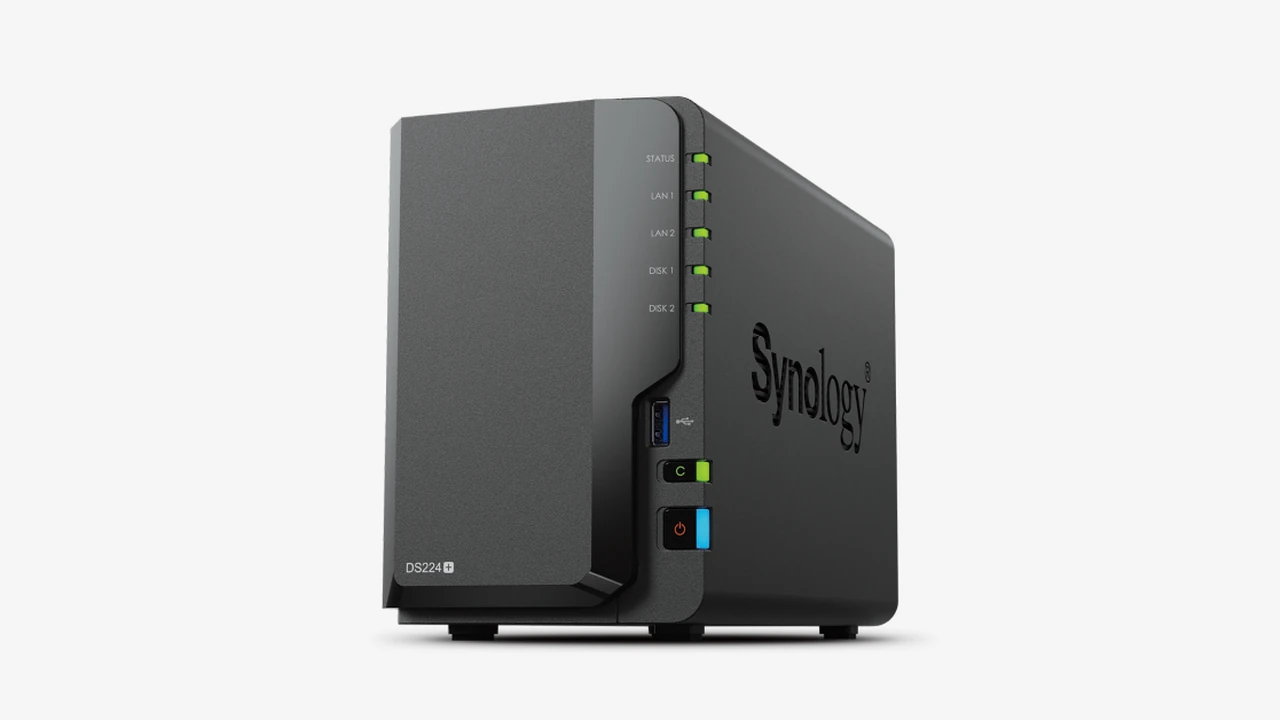
Image: Synology DiskStation marketing photo (Synology).
A home NAS is a quiet server in a closet. It holds photo libraries, Time Machine targets, media, and “I’ll sort this later” shares. Attackers treat it the same way they treat any internet-reachable file server: scan for old firmware, try default admin passwords, and encrypt whatever is mounted.
This is a patching and exposure checklist for a household box (Synology, QNAP, TrueNAS, Asustor, TerraMaster, and similar). It is not a RAID shopping guide.
Why home NAS boxes get hit
They stay online for years. People set them up once, create a share, and forget the DSM / QTS / TrueNAS update badge. Vendor advisories keep listing remote code execution and auth bypass bugs in NAS software. CISA’s #StopRansomware Guide still stresses offline backups and timely updates. A living-room NAS is not exempt.
Shares that are reachable from every laptop on flat Wi-Fi also mean ransomware on one PC can encrypt the family photo volume if that volume is mapped and writable.
Update paths (high level)
Synology DSM: Control Panel → Update & Restore (wording can shift by DSM version). Check for DSM updates, read the release notes, then apply during a quiet hour. Synology publishes security advisories when issues matter. Turn on notification mail so you see update offers.
QNAP QTS / QuTS: Use the built-in update UI (Firmware Update / System Update depending on version). Follow QNAP’s security advisory page and apply patches promptly when they call out actively exploited issues. Disable unused apps that widen the attack surface.
TrueNAS CORE / SCALE: Update from the web UI’s System → Update (labels vary by train). Stick to a supported train, read the release notes, and keep a boot environment or config backup you can roll back to. TrueNAS documents the process in its software update docs.
Any brand: If the vendor stopped shipping updates for your model, treat that as an end-of-life signal. Export data, replace the unit or the OS path, and do not leave an abandoned admin UI on the LAN forever.
Always confirm you can power-cycle the unit safely and that critical jobs (backups, media) can pause for a reboot before you click Apply.
Lock down how you administer it
- Change the default admin password on day one. Prefer a named admin account and disable generic
adminif the OS allows it. - Do not expose the NAS admin UI or SMB to the public internet. No port forwards for 5000/5001, 443, 445, or “QuickConnect-style” shortcuts you do not understand. If you need files away from home, use a VPN into the house or the vendor’s documented reverse-proxy pattern you actually reviewed.
- Put the NAS on the trusted LAN, not on guest or IoT Wi-Fi with the cameras. Gadgets should not be able to reach your shares. See guest and IoT Wi-Fi at home.
- Limit who has write access. Read-only for media consumers. Full write only for the accounts that backup or edit.
- Turn off services you do not use (Telnet, older FTP, anonymous shares, UPnP helpers on the NAS itself).
- Enable MFA on the NAS account when the vendor supports it, especially if the UI is reachable from more than one machine.
Patching habit that fits a household
- Monthly: open the NAS update page, apply pending OS updates, reboot if required, confirm shares remount.
- When you see a vendor advisory: patch sooner. Do not wait for the next lazy Sunday.
- After every update: spot-check that Time Machine, photo sync, or media libraries still work.
- Keep the hypervisor or UPS story boring: clean shutdowns beat surprise power loss mid-upgrade.
Backups still matter more than the badge
A patched NAS can still die, and ransomware can still hit a mapped drive. Pair updates with a real copy plan:
- Do not treat the NAS as your only copy of irreplaceable photos
- Keep an external disk or offline copy you can unplug
- Remember cloud sync is not a backup and count copies with 3-2-1 at home
Snapshots on the NAS help with accidental deletes. They do not replace an offline copy if the whole box is encrypted or stolen.
Do this
- Check for OS updates today and apply them (or schedule the reboot tonight).
- Confirm SMB / admin ports are not forwarded on the router.
- Review share permissions; remove old accounts for people who moved out.
- Subscribe to your vendor’s security advisory RSS or email if they offer it.
- Run one restore test from whatever backs up the NAS (or from the NAS snapshots plus an offline disk).
Do not do that
- Do not click through a years-old “update available” banner forever.
- Do not expose the NAS to the internet so a phone app can mount SMB at a coffee shop.
- Do not give every smart TV a full read/write home directory.
- Do not keep the only copy of wedding photos on a single RAID volume and call RAID a backup. RAID is uptime, not undo.
Bottom line
A home NAS earns trust by holding files you care about. Keep the OS current through the vendor’s update UI, shut off internet exposure, park it on the trusted network away from IoT junk, and maintain an offline or offsite copy you have restored from once. Patching is boring. Recovering an unpatched, internet-facing share after ransomware is not.