Magnifier adds touch gestures
On November 16, 2026 Microsoft's Windows Insider blog described new touchpad and touchscreen gestures for Magnifier, documented in Experimental build 26340.10013, so you can zoom and pan without living on keyboard shortcuts.

Magnifier already helps when tiny UI text fights you. On November 16, 2026, the Windows Insider blog described touchpad and touchscreen gestures for Magnifier, so zoom and pan can match how you already move around a laptop or tablet.
This is still Insider preview news, not a finished Stable-channel promise. The gestures are officially documented in Experimental build 26340.10013. If you already accept Insider risk at home, it is worth a careful try.
What Microsoft shipped
From the Windows Insider post for 16 November 2026 (Stephen Lines), which announced Beta build 26320.10003 and Experimental build 26340.10013:
- Magnifier still works with keyboard, mouse, and scroll wheel. It now also supports touchpad and touch gestures while Magnifier is on.
- Start Magnifier with Windows key + Plus (+).
Touchpad gestures (while Magnifier is running):
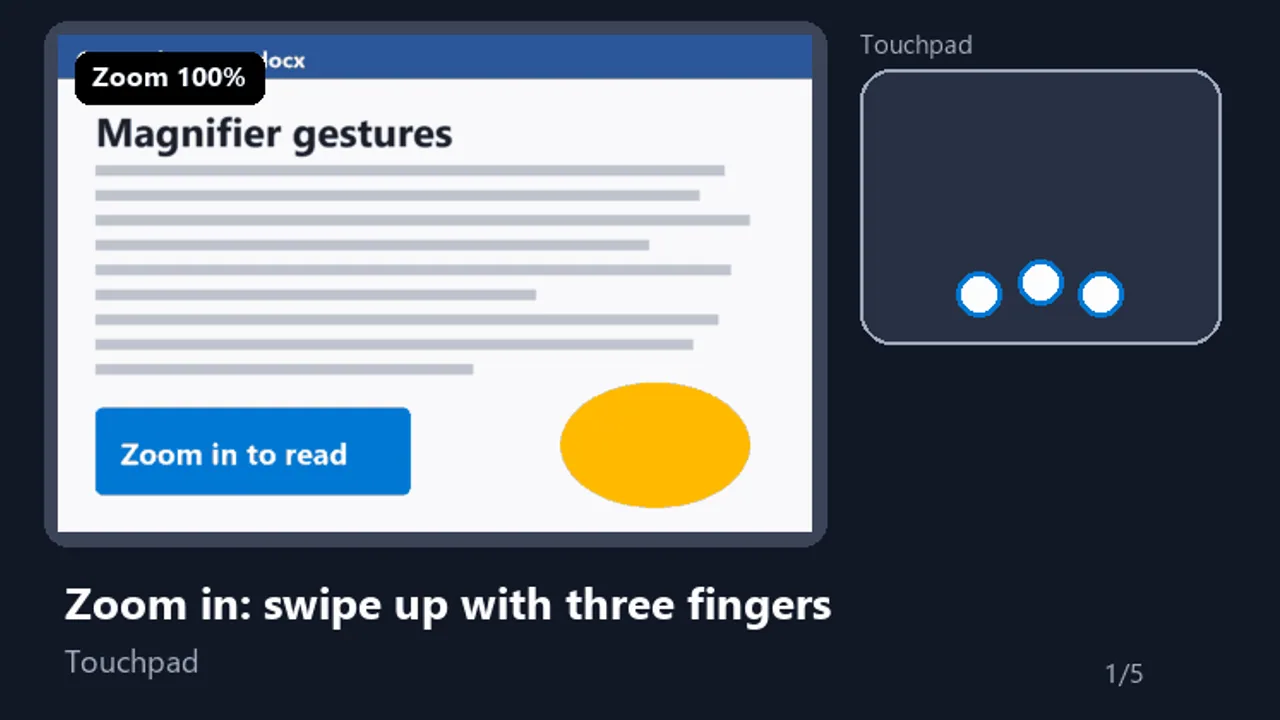
- Zoom in / out: three-finger swipe up to zoom in, three-finger swipe down to zoom out.
- Pan: move one finger as usual so the magnified view follows the pointer.
- Toggle 100% and your previous zoom: three-finger tap.
Touchscreen gestures (while Magnifier is running):
- Pan: drag with three fingers.
- Zoom in / out: with three fingers, tap once, then tap again and keep your fingers down; drag up to zoom in or down to zoom out.
- Toggle 100% and your previous zoom: three-finger double-tap.
Both gesture sets are on by default. To turn either off: Settings > Accessibility > Magnifier, then disable Control Magnifier with touchpad gestures or Control Magnifier with touch gestures.
The same gestures appear in the official Experimental notes for build 26340.10013, under changes that can roll out gradually. Those notes also add a help (?) button on the Magnifier toolbar for support articles, what’s new, and Feedback Hub. The published Beta notes for build 26320.10003 do not list Magnifier, so do not assume the Beta build number alone brings the gestures. If you already use Beta, look for the toggles in Magnifier settings.
The same Insider post also lists other preview features (FIDO2 passkey management on a security key, Remote Lock for managed devices, taskbar list view). Those are separate stories. This page stays on Magnifier for people who need larger UI on their own PC.
Why home users should care
If you already lean on Magnifier for small fonts, maps, photo detail, or aging eyes after a long day, keyboard-only zoom is fine until your hands are already on the trackpad. Matching Magnifier to touchpad and touch gestures cuts the mode switch.
This is happy accessibility news in the plain sense: Microsoft is extending an existing system tool instead of inventing a new app you have to buy. It sits alongside other home-facing Windows notes we have covered, such as Windows 11 26H2 availability and the free NVDA 2026.3 screen reader release for people who need spoken UI.
Limits matter. Insider builds can break other things. Do not treat a preview build as required homework for a family PC you cannot afford to reinstall.
How to try it on your own PC
- Confirm you are willing to run Windows Insider preview software on a spare machine or a PC you can roll back. Skip this if Stable is non-negotiable for you.
- Join or open the Windows Insider Program settings on that PC. For the build whose official notes document these gestures, pick the Experimental channel and install build 26340.10013 when Windows Update offers it.
- Use Microsoft’s Insider post and the Experimental release notes as the checklist. Features in that Experimental flight can arrive gradually, so the gestures may not appear the moment the build installs.
- Press Windows key + Plus (+) to start Magnifier.
- On a laptop touchpad, try a three-finger swipe up/down to zoom, one-finger pan, and a three-finger tap to jump between 100% and your last zoom.
- On a touchscreen, try three-finger drag to pan, the two-step three-finger zoom Microsoft describes, and a three-finger double-tap to toggle zoom.
- If a gesture fights your normal three-finger window gestures, open Settings > Accessibility > Magnifier and turn off the Magnifier touchpad or touch controls.
If Magnifier is new to you on Stable Windows today, you can still learn the older keyboard path (Windows + Plus) while you wait for these gestures to reach a broader release. Microsoft has not promised a Stable date in the Insider note.
Do this / don’t do that
Do
- Read the official Insider blog post and the Experimental release notes before you change channels.
- Practice the gestures while Magnifier is already on, as Microsoft requires.
- Keep a recovery plan (restore point, spare admin account, or known-good install media) before Experimental builds.
Don’t
- Do not force an Insider channel onto the only PC in the house just for Magnifier gestures.
- Do not invent Stable-channel availability Microsoft did not announce.
- Do not assume Beta build 26320.10003 includes the gestures just because it was announced the same day. Check Magnifier settings.
- Do not confuse Magnifier gestures with Remote Lock or Intune device lock features from the same post. Those are for managed devices, not a home Magnifier tip.
Bottom line
On November 16, 2026, the Windows Insider blog described touchpad and touchscreen gestures for Magnifier, and the official Experimental notes document them in build 26340.10013. On your own PC: only try it if you already accept Insider risk, start Magnifier with Windows + Plus, learn the three-finger zoom and pan moves, and turn the gesture toggles off in Accessibility settings if they collide with your normal trackpad habits.
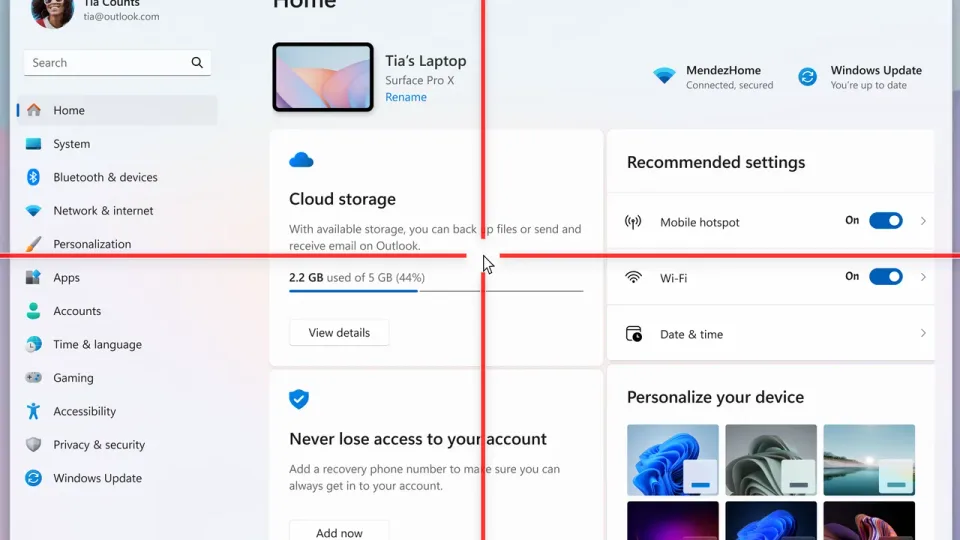
Image: Official Windows Insider Blog screenshot of Magnifier touchpad gestures, from the November 16, 2026 builds post.