Tutorial
Use the Windows Backup app
Windows Backup can save your folders, settings, and app list to your Microsoft account. Here is how to set it up, what it really does with OneDrive, and how to add a true second copy.

If you got a new Windows PC this spring, or you are finally retiring a Windows 10 machine (Microsoft ended Windows 10 support on October 14, 2025), the built-in Windows Backup app is worth ten minutes of your Sunday. It makes moving to a new PC much less painful. It is also easy to misunderstand, so let’s walk through what it does and what it does not.
What Windows Backup covers
Microsoft describes Windows Backup as a one-stop tool that can back up:
- Your Desktop, Documents, Pictures, Videos, and Music folders, by syncing them to OneDrive
- Many of your installed apps, so a new PC can offer to bring them back
- Accessibility settings
- Accounts, Wi-Fi networks, and passwords
- Personalization like wallpaper, colors, and Start layout
- Language preferences and other Windows settings
One important limit: Microsoft says the app is focused on personal devices signed in with a personal Microsoft account (Outlook.com, Live.com, and similar). Work or school accounts will not work with it. If your PC belongs to your employer, ask your IT team how they protect it.
Step 1: Sign in with a Microsoft account
- Open Settings, then Accounts, then Your info.
- If you see Sign in with a Microsoft account instead, you are on a local account. Select it and sign in.
- If you see Sign in with a local account instead, you are already set.
Step 2: Choose your folders
- Select Start, type backup, and open Windows Backup.
- Expand Folders.
- Toggle on the folders you want: Desktop, Documents, Pictures, Videos, Music.
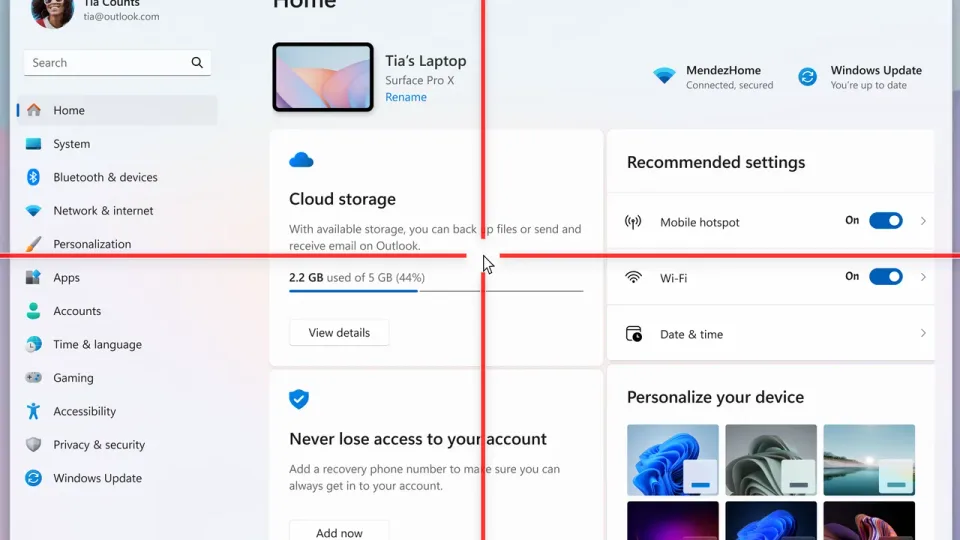
Microsoft notes a free Microsoft account comes with 5 GB of OneDrive storage. Photos and videos can blow past that quickly, so check how much you are about to upload before you flip every switch.
Step 3: Choose your settings, then back up
Expand each settings section and turn on what you want remembered. Some items may already show Backed up because Windows saves them by default. When everything looks right, select Back up.
Later, you can check status or change choices in Settings > Accounts > Windows backup.
The catch: folder backup is OneDrive sync
Here is the part that matters. Microsoft explains that backing up folders syncs them to your OneDrive. That is great for getting to your files from another PC. It also means a file you delete or overwrite on your PC changes in OneDrive too.
OneDrive keeps a recycle bin and file version history, which help with small mistakes. But sync is still not the same as an independent backup that sits apart from your everyday account. If ransomware scrambles your Documents folder, or you delete a folder and do not notice for a long time, you want a copy that the sync did not touch.
Step 4: Add File History to an external drive
Windows still includes File History, which saves copies of your files to an external drive or network location on a schedule.
- Plug in an external drive.
- Open Control Panel, then under System and Security select Save backup copies of your files with File History.
- Select Turn on. If the right drive is not chosen, use Select drive.
Unplug the drive when you are not using it, and plug it back in regularly so File History can catch up. A drive that stays unplugged in a drawer is out of reach of anything that goes wrong on the PC.
Step 5: Prove you can restore
A backup you have never restored from is a guess. Pick one file, delete a copy (or rename it), and bring it back from File History. Then sign in to onedrive.com and confirm your folders are there. We walk through the habit in verify your backups before you need them, and it works the same at home.
Do this, not that
Do
- Turn on Windows Backup before you shop for a new PC, so moving is easy.
- Add File History or another backup to a drive you can unplug.
- Check that your OneDrive storage is not full.
Don’t
- Treat OneDrive folder sync as your only copy.
- Expect Windows Backup to work with a work or school account.
- Wipe the old PC until the new one has your files and you have opened a few.
Bottom line
Windows Backup is the easy button for settings, app lists, and moving to a new computer. Pair it with File History on an external drive and you have two different copies in two different places, which is what a real backup looks like.