MicrosoftTutorial
Windows 11 24H2 Home/Pro: end of updates is October 13
Windows 11 version 24H2 Home and Pro stop getting monthly updates on October 13, 2026. How to check winver today, what Microsoft says about the automatic 25H2 path, and how 26H2 fits for eligible home PCs.

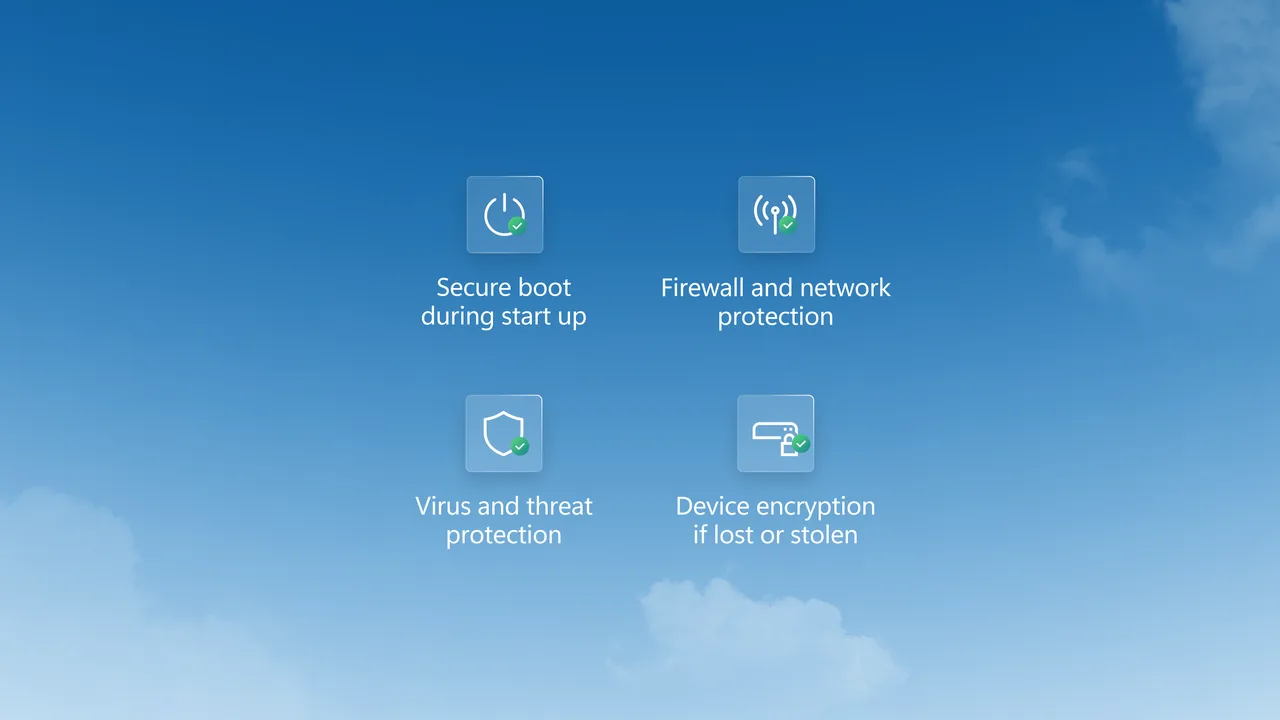
Image: Windows 11 security features marketing art (microsoft.com/windows).
If your home PC still says Windows 11 version 24H2 on Home or Pro, treat October 13, 2026 as a hard calendar date. Microsoft’s release-health page states that 24H2 Home and Pro editions reach end of updates on that day. Afterward, those editions no longer get the usual monthly security and preview packages, known-issue fixes, time zone updates, or technical support for that version.
This is not another optional preview story. It is the support cliff for a version line. We already walked through getting the newer 26H2 feature update in Windows 11 version 26H2 is available. Today’s piece is the day-before checklist: confirm what you are running, then leave 24H2 Home/Pro behind.
What Microsoft says ends on October 13
On the Windows 11, version 24H2 known issues and notifications page, Microsoft writes that 24H2 Home and Pro reach end of updates on October 13, 2026. Devices on those editions then stop receiving:
- Monthly security and preview updates
- Fixes for known issues
- Time zone updates
- Technical support for that version
Microsoft’s Windows 11 release information table matches that Home/Pro end date for version 24H2. Pro Education and Pro for Workstations share that date, while Enterprise and Education editions of 24H2 stay on a longer clock (October 12, 2027). This article is for a normal home Microsoft account PC on Home or Pro.
What happens if you are still on 24H2 Home/Pro
Microsoft’s 24H2 status page also says that Home and Pro devices that are not managed by IT departments will receive Windows 11 version 25H2 automatically. You can choose when to restart or postpone that update. In Settings → Windows Update, you may see Download and install Windows 11, version 25H2 when the PC is ready.
Separately, Microsoft has been offering the Windows 11 2026 Update (26H2) for eligible 24H2 and 25H2 PCs. That path is covered in our 26H2 availability guide and on the Windows Experience Blog how-to. For many home PCs already on monthly servicing, 26H2 arrives as a small enablement package.
Practical reading for a home user:
- Do not stay on unsupported 24H2 Home/Pro after October 13.
- If Windows Update offers 25H2, taking it leaves the expired 24H2 Home/Pro train.
- If your PC is eligible for 26H2, that is the 2026 feature-update path we already documented. Prefer the offer Windows Update actually shows for your device rather than random ISO sites.
If winver already says 25H2 or 26H2, you are not on the October 13 Home/Pro cliff for 24H2. Keep taking monthly Windows Update packages as usual.
Check your version in two minutes
- Press Win + R, type
winver, press Enter. - Or open Settings → System → About and read Version and Edition.
- Write down the version (24H2, 25H2, 26H2, or 26H1) and whether the edition is Home or Pro.
Targets for this deadline:
- 24H2 + Home or Pro: you need a feature update path before or as the date hits.
- 25H2 or 26H2: you are past the 24H2 Home/Pro end date. Stay current on monthly updates.
- 26H1: that is a separate new-device branch. See the notes in our 26H2 article. Do not force 26H2 onto it from random advice sites.
What to do in Windows Update today
- Open Settings → Windows Update.
- Select Check for updates.
- If you see Windows 11, version 25H2 or Windows 11, version 26H2, download and install it when you have time for a restart.
- Restart when Windows asks. Leaving the download finished but unrestarted still leaves you on the old version.
- Run
winveragain. Confirm you are no longer on 24H2 if you started there on Home/Pro.
Back up photos, documents, and a browser bookmark export before a feature update. Feature updates are usually smooth. A backup still beats hoping.
If Windows Update shows nothing yet, that can be controlled rollout or a safeguard hold. Keep checking daily through the deadline. Do not download “Windows 11 activator” packs or unofficial ISO bundles to force it.
Do this / don’t do that
Do
- Run
winvertoday and read the version and edition. - Install 25H2 or 26H2 from Windows Update when offered on a Home/Pro PC still on 24H2.
- Restart so the new version actually runs, then verify with
winver. - Keep monthly security updates on after you leave 24H2.
Don’t
- Do not assume “Windows 11” on the lock screen means you are on a supported version line.
- Do not confuse this with the older Windows 10 end-of-support story. This date is specifically 24H2 Home/Pro.
- Do not skip the restart after a feature update download.
- Do not chase unofficial ISOs because Windows Update is staged.
Bottom line
Microsoft’s 24H2 status page sets October 13, 2026 as end of updates for Windows 11 version 24H2 Home and Pro, and says unmanaged Home/Pro PCs get 25H2 automatically. Eligible PCs may also see 26H2 (how to get the 2026 Update). On your own PC: check winver, take the feature update Windows Update offers, restart, and confirm you left 24H2 Home/Pro before the cliff.