Windows finds your mouse pointer
On November 13, 2026 Microsoft's Windows 11 Release Preview builds 26200.10066 and 26300.10066 add a Pointer indicator for low vision, more Narrator math languages, Magnifier help, and easier recovery from accidental sticky-key shortcuts.

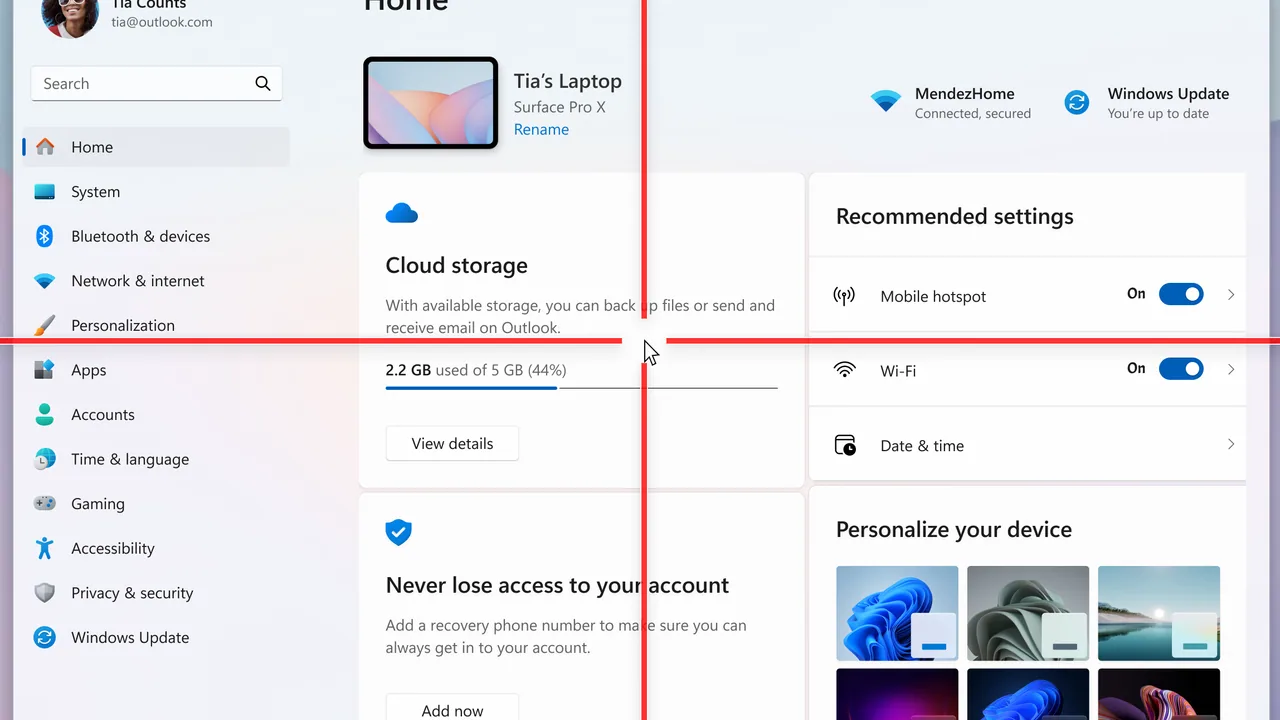
Losing the mouse pointer on a busy desktop is a small frustration until it happens every hour. On November 13, 2026, Microsoft published Release Preview notes for Windows 11 builds 26200.10066 and 26300.10066 (KB5132057) with a cluster of accessibility improvements aimed at everyday PCs, led by a new Pointer indicator for people with low vision.
This is preview-channel software with gradual rollout. It is still worth knowing what is coming if you use Windows at home and care about seeing the cursor, hearing math, or escaping accidental keyboard shortcuts.
What Microsoft shipped in Release Preview
From the official Release Preview notes dated 13 November 2026, for Windows 11 versions 25H2 (build 26200) and 26H2 (build 26300):
- Pointer indicator: makes it easier for people with low vision to locate and use the mouse pointer. Turn it on in Settings → Accessibility → Mouse pointer and touch. After it is on, press Windows logo key + Ctrl + Shift + X to toggle the indicator. The same notes say mouse pointer performance during screen captures improved (less visible cursor latency in scenarios such as game streaming).
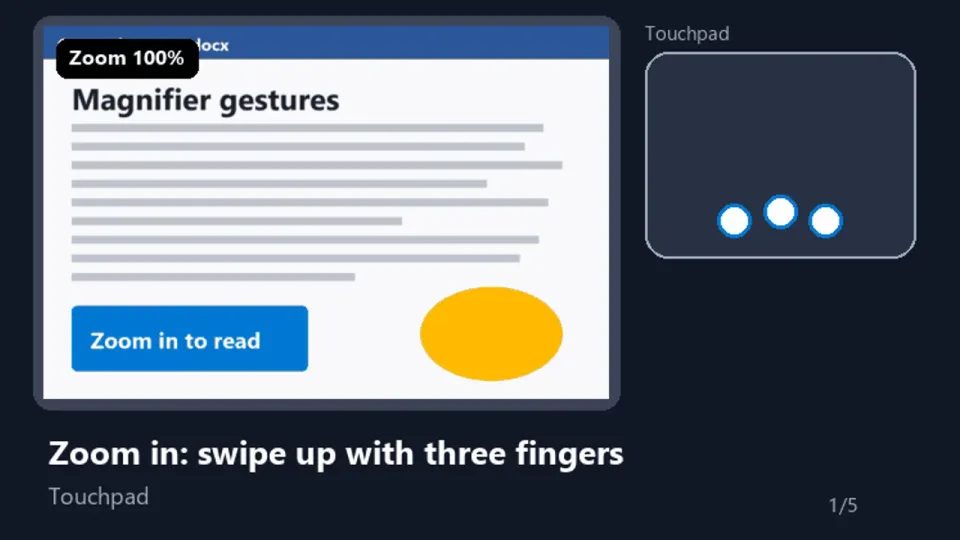
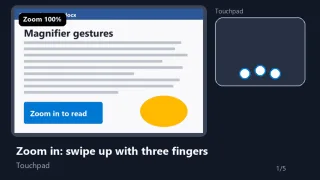
- Magnifier: a setting to choose whether Windows logo key + Plus (+) starts Magnifier (on by default), plus a help menu and a direct path into Feedback Hub.
- Narrator: math reading expands to additional languages: Greek, Hungarian, Indonesian, Norwegian (Bokmål), Polish, Russian, Swedish, and Vietnamese.
- Keyboard shortcuts: if you accidentally trigger Sticky Keys, Filter Keys, or Toggle Keys, you can turn the shortcut off from the prompt that appears. Notification preferences remain under Settings → Accessibility → Keyboard.
Microsoft separates gradual rollout (features arrive over time, availability varies by device) from normal rollout (broader fixes). The accessibility items above sit in the gradual section. Installing the package does not guarantee every toggle appears on day one.
Why home Windows users should care
Pointer hunting is not a niche joke. Large monitors, dark themes, and busy wallpapers make the cursor easy to lose, especially with low vision. A dedicated indicator with a remembered shortcut is a practical win.
Narrator’s extra math languages help students and anyone reading equations aloud in those languages. Magnifier’s help menu and shortcut control reduce “I hit Plus by mistake and my screen exploded” moments. Being able to disable an accidental Sticky Keys shortcut from the prompt saves a trip into Settings when a key sticks during a game or a long document.
Keep the channel honest. Release Preview is still an Insider preview path, not a promise that every home PC on stable Windows 11 already has these controls. Compare that framing with other home-PC how-tos we publish, such as updating Paint through the Microsoft Store or Quick Share photo backup to a PC: useful when the path matches your machine, easy to oversell if you ignore the channel label.
How to try Pointer indicator on your own PC
- Confirm you are on Windows 11 and, if you want these notes specifically, that you are in the Windows Insider Release Preview channel for 25H2 or 26H2. Stable-only PCs should wait for the features to reach a normal cumulative update rather than joining Insider casually.
- Open Settings → Windows Update, install available updates, and restart if Windows asks.
- Check Settings → System → About (or winver) so you know your build. Look for 26200.10066, 26300.10066, or a later build that inherits the same notes.
- Open Settings → Accessibility → Mouse pointer and touch and turn on Pointer indicator when it appears.
- Press Windows logo key + Ctrl + Shift + X and confirm the indicator toggles.
- Optional: open Settings → Accessibility → Magnifier to review the Plus-key toggle and help menu, and skim Narrator language support if you rely on spoken math.
If the Pointer indicator switch is missing after update, remember gradual rollout. Check again later before you assume the install failed.
Do this / don’t do that
Do
- Read the Microsoft Learn Release Preview notes for the official shortcuts and language list.
- Use the accidental Sticky Keys / Filter Keys / Toggle Keys prompt to disable a shortcut you did not mean to arm.
- Keep a regular backup habit before joining any Insider channel on a PC you depend on daily.
Don’t
- Do not tell friends on stable Windows that they “already have” Pointer indicator just because the notes exist.
- Do not invent a general-availability date Microsoft did not publish.
- Do not disable accessibility features you still need while cleaning up accidental shortcuts. The prompt is about the shortcut trigger, not about throwing away Magnifier or Sticky Keys entirely.
Bottom line
On November 13, 2026, Windows 11 Release Preview builds 26200.10066 and 26300.10066 added a Pointer indicator for low vision, Magnifier help and shortcut control, Narrator math in eight more languages, and faster recovery from accidental keyboard accessibility shortcuts. On your own PC: update if you are already on that preview path, enable Pointer indicator when it appears, learn the toggle shortcut, and wait for stable rollout if you are not an Insider.
Image: Official screenshot of the Pointer indicator over Windows 11 Settings, from the Windows Insider Blog.