Chrome Enhanced Protection: new scam warnings worth turning on
On October 20, 2026 Google described new Chrome Safe Browsing Enhanced Protection defenses against suspicious sites, Gemini-backed scam checks, and ClickFix social engineering. How home users enable it and what to watch for.

Browser security updates close memory bugs. Scam defenses try to stop you from helping the attacker finish the job. On October 20, 2026, Google published a clear home-user note about new Chrome Safe Browsing Enhanced Protection features aimed at phishing, fake tech-support pages, and a nasty trick called ClickFix.
This is not the same story as this week’s eMudhra certificate blocks. Certificate distrust is about who can mint a lock icon. Enhanced Protection is about whether Chrome should interrupt a page that is trying to socially engineer you. You want both: a current Chrome build, and Enhanced Protection turned on.
What Google said on October 20
Google’s product post, Our latest defenses against evolving web scams (October 20, 2026, by Jasika Bawa), says:
- Chrome launched Enhanced Protection mode for Safe Browsing in 2020, and in 2025 Google said more than 1 billion Chrome users had it enabled.
- Google claims Enhanced Protection users are ten times safer from phishing, social engineering, notifications abuse, and other scams than users on Safe Browsing Standard Protection (Google’s footnote compares average safety-warning counts between the two modes).
- Suspicious site warnings now sit alongside the familiar full-page dangerous site red interstitial when Enhanced Protection is on. Suspicious means a lower-confidence verdict with possible harm. Dangerous means high confidence and high risk.
- Chrome is expanding Gemini-assisted scam detection for Enhanced Protection users. Last year it used on-device Gemini against tech-support scams on supported devices. Google says it has moved to a more powerful server-side Gemini model so more users, and a broader set of scams (including fake antivirus and fake browser-update pages), can be checked. Google says Chrome only analyzes page text when a site already shows high-confidence scam indicators, and that any page content sent off the device is processed ephemerally (never logged, retained, or used to train models).
- Chrome is also targeting ClickFix: pages that trick you into copying and running a “repair” command to fix a fake problem. Google says the command you paste is often not the one shown on the page, and almost always abuses built-in system tools such as PowerShell or cmd.exe, so the malware download happens outside Chrome’s normal download protections. With Enhanced Protection, Chrome can detect when you copy a suspicious command, send the clipboard contents (scrubbed of personal information) to Safe Browsing, and warn you if the verdict is dangerous.
That is the product claim. Treat the “ten times safer” line as Google’s metric, not as a promise that you are invincible.
Why ClickFix belongs in a home checklist
Most people do not paste random shell commands into PowerShell. Scam pages invent urgency: “Your PC is infected,” “Chrome needs a repair,” “Call this number, then run this.” Google says the command you actually paste is often not the one the page shows. You become the installer.
Chrome cannot patch human panic, but interrupting the clipboard step is useful. If Chrome warns you about a copied command, believe the warning. Close the tab. Do not run the command “just to see.”
How to turn Enhanced Protection on
Google’s post tells readers to enable Enhanced Protection in Chrome and on their Google Account. On a home PC or Mac, the usual path is:
- Open Google Chrome on the computer you actually browse on.
- Open Settings (three-dot menu → Settings).
- Open Privacy and security → Security.
- Under Safe Browsing, select Enhanced protection.
- Stay signed into the Google Account you use for Chrome sync if you want the account-linked protections Google describes.
- Repeat on any other home profile that still uses Standard Protection (the living-room PC, the laptop that only opens banking sites).
On Android Chrome, open Chrome → profile / Settings → Privacy and security / Safe Browsing controls and choose Enhanced Protection there as well. Menu labels move slightly by version, but “Enhanced protection” is the wording to look for.
Enhanced Protection is more protective and more networked than Standard. Google’s post is explicit that some page content can leave the device for analysis when scam indicators are strong. If that tradeoff bothers you, Standard still beats “No protection.” For most home users who already sync bookmarks to a Google Account, Enhanced is the sensible default.
Pair this with ordinary Chrome updates
Safe Browsing features ride on a living browser. Keep Chrome itself current:
- Menu → About Google Chrome.
- Wait for the download, then Relaunch.
- Confirm with
chrome://version.
Recent Stable notes on this site still matter for the memory-bug side of the job (Chrome 155.0.8059.84, Chrome 155.0.8059.79). Enhanced Protection does not replace installing those builds.
Do this / don’t do that
Do
- Turn on Enhanced protection in Chrome Settings → Privacy and security → Security.
- Treat a new suspicious-site warning as a reason to leave, not as a puzzle to solve.
- If Chrome warns about a copied command, clear the clipboard and close the tab.
- Keep Chrome updated and relaunched on every home PC that still uses it.
Don’t
- Do not paste “fix your browser” commands from a webpage into PowerShell, Terminal, or Run.
- Do not call phone numbers shown on a sudden full-screen “your computer is locked” page.
- Do not disable Safe Browsing because one warning felt annoying.
- Do not confuse this post with the eMudhra CA response. Different problem, same week, both worth your attention.
Bottom line
On October 20, 2026, Google described new Chrome Enhanced Protection defenses: suspicious-site warnings, broader Gemini-backed scam checks, and ClickFix clipboard warnings (Google blog). On your own computer: open Chrome Settings, select Enhanced protection, keep Chrome updated, and never run repair commands a webpage told you to paste. That is the useful home setting change from this announcement.
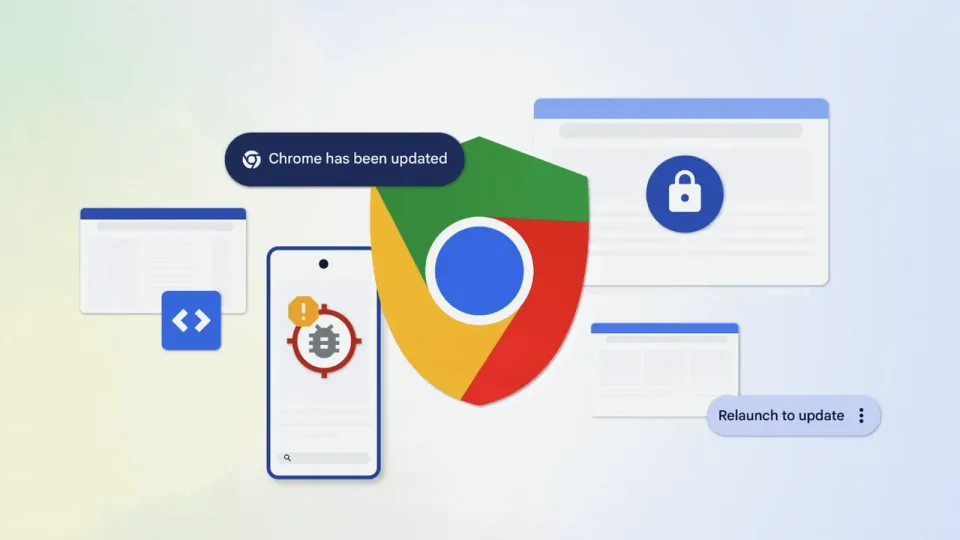
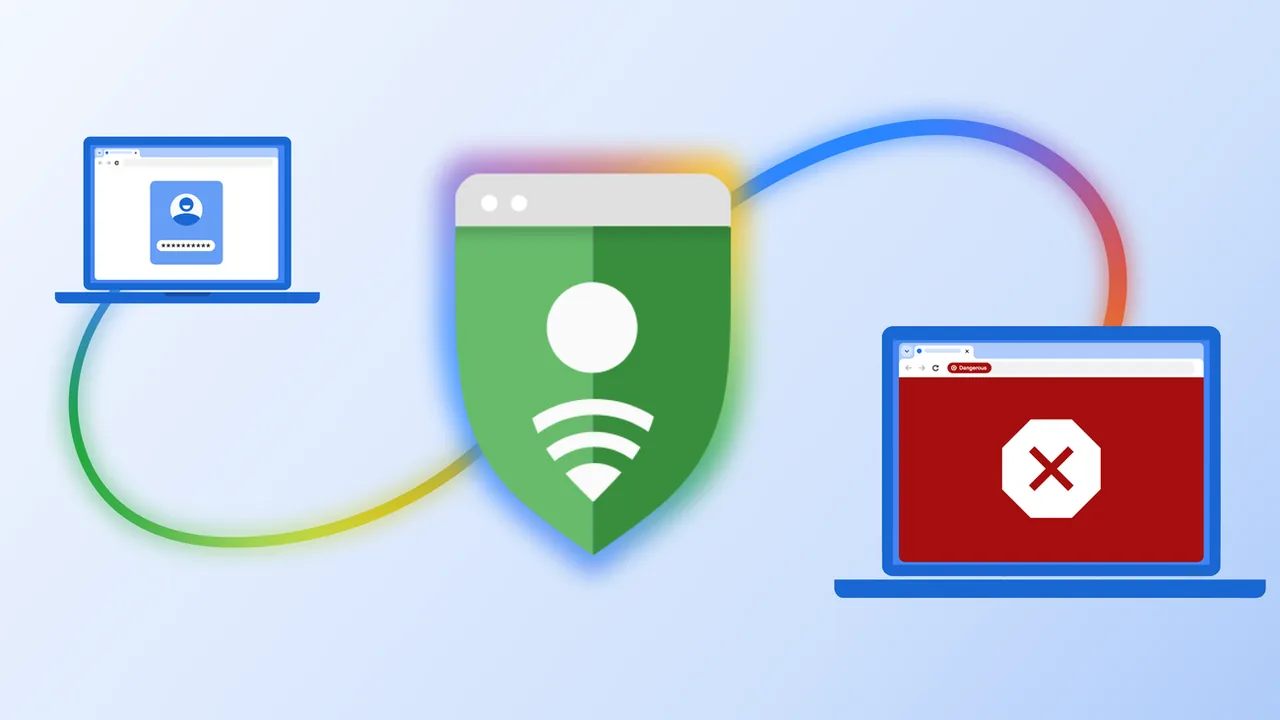
Image: Google Chrome scam-defenses blog header art from “Our latest defenses against evolving web scams” (blog.google).