Chrome now asks before insecure HTTP: what home users should do
On October 21, 2026 Google rolled Always Use Secure Connections to all Chrome users by default. How the HTTP warning works, what it skips (like your router), and how to check the setting on your own PC or phone.

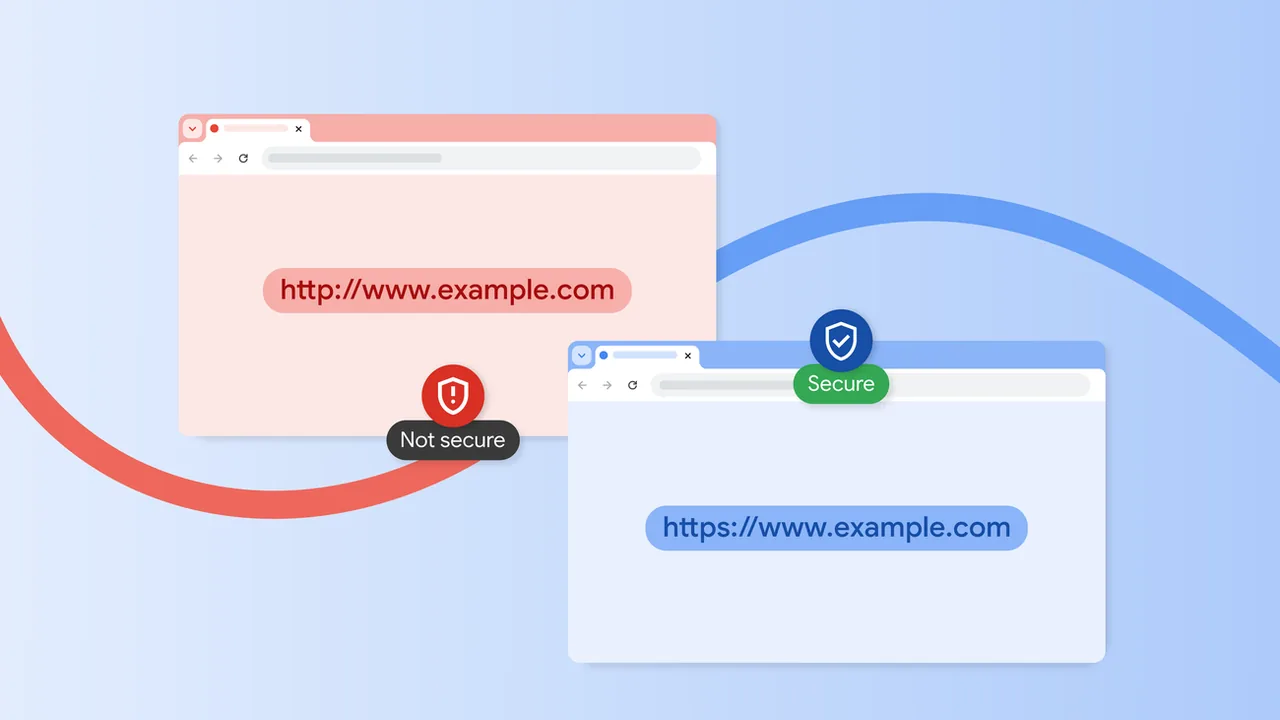
Image: Official Google Chrome HTTPS launch blog header art (blog.google).
Plain HTTP on the public web is the leftover odd case. On October 21, 2026, Google announced that Chrome now asks before making an insecure HTTP connection, and that this protection is on by default for everyone, not only people who turned on Enhanced Protection earlier in the year.
This is a home-browser change. You only need to know what the prompt means, when Chrome stays quiet on purpose, and where the setting lives if someone in the house turned it off.
What changed
For years Chrome labeled HTTP pages Not Secure after the connection already happened. That badge is easy to miss, and it never appears for short-lived HTTP hops such as redirects. Google’s Secure Web and Networking team writes that badging alone cannot stop the exposure; the browser has to ask before the unprotected request goes out.
The setting is called Always Use Secure Connections. When it is on:
- You try to open a site that would use public HTTP.
- Chrome shows a permission prompt first.
- If you approve that site once, Chrome will not ask again until you have stayed away for at least two weeks.
- If you decline, Chrome does not complete that insecure connection.
Google’s early rollout numbers (from the same post) say nearly 95% of desktop Chrome users see no HTTP warnings in a given week, and under 1% see three or more. Mobile warning rates are even lower. That is why they are comfortable making this the default without drowning people in prompts.
Enhanced Protection users got this behavior earlier in 2026. The October 21 post is the moment it becomes the normal Chrome experience for all users by default.
What Chrome skips on purpose
Not every non-HTTPS name is treated the same. Google says warnings are not shown by default for hosts that cannot get a publicly trusted HTTPS certificate. Everyday examples from the announcement:
- Single-label hostnames such as
intranet/ - Local IP addresses such as
192.168.0.1(common when you open a home Wi-Fi router’s admin page)
Those cases usually require someone already on your local network to tamper with the traffic. The public-web HTTP problem is different: coffee-shop Wi-Fi, compromised routers, and anyone who can sit between you and a plain HTTP site.
So if you still manage a home router over http://192.168.x.x, do not panic when Chrome stays quiet. That is intentional. Do pay attention if a shopping or login site on the public internet asks you to allow HTTP.
How to check the setting on your own devices
Windows, Mac, or Linux Chrome
- Open Chrome on the computer you browse on.
- Go to
chrome://settings/security(or Menu -> Settings -> Privacy and security -> Security). - Find Always Use Secure Connections.
- Leave it on. That is the new default Google describes.
- While you are there, confirm you are on a current Stable build with
chrome://version(our Chrome 156 Stable note covers the October 20 security train if you are still behind).
Android Chrome
- Open Chrome -> Menu -> Settings -> Privacy and security -> Security.
- Confirm Always Use Secure Connections is enabled.
- Update Chrome from Google Play on its own schedule; the desktop update does not patch your phone.
iPhone / iPad Chrome
Chrome on iOS follows the App Store. Open Settings inside Chrome and check the Security section for the same Always Use Secure Connections control when it appears on your build. System Safari is a separate browser with its own HTTPS behavior.
Repeat on the laptop that mostly sleeps in a bag and the shared family PC. Those are the machines that still run last month’s defaults.
What to do when the warning appears
Treat the prompt as a real decision, not a speed bump.
Do
- Prefer sites that load over HTTPS without asking.
- If a site you trust still needs HTTP (a dusty local docs page, an old device UI that is not a LAN IP), approve it knowingly and remember the two-week quiet window.
- Bookmark the HTTPS version of sites you use often so you stop landing on the old
http://link. - Keep Enhanced Protection on if you want the stronger Safe Browsing scam warnings Google shipped around the same week. That feature is related but not the same as this HTTP gate.
Don’t
- Do not train yourself to click through every HTTP prompt the way people used to click through certificate errors.
- Do not turn Always Use Secure Connections off because one oddball page was annoying. Fix the bookmark or use a LAN address when that is what you meant.
- Do not confuse this with a VPN. Chrome is warning about the site’s transport. It is not hiding your traffic from your ISP.
Bottom line
On October 21, 2026, Google made Chrome ask before insecure public HTTP connections for all users by default (Chrome security blog). On your own PC or phone: leave Always Use Secure Connections on, expect rare prompts, and keep using HTTPS sites. Local router admin pages over a LAN IP are exempt by default. Random public HTTP is not.