Gemini can now use your Mac
On November 19, 2026 Google added computer use to the Gemini app for Mac so it can click, type, and fill forms across local files, desktop apps, and websites in an isolated window you can watch and stop.

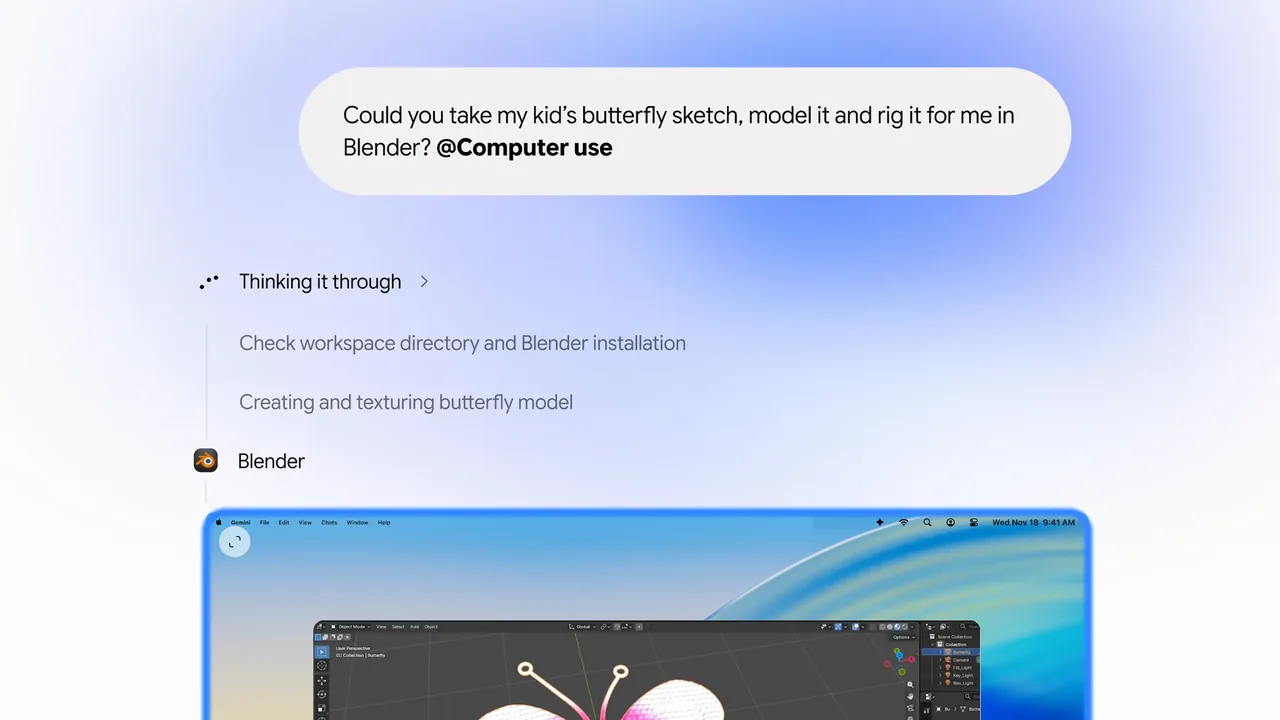
Asking a chatbot for advice is one thing. Letting it click through your Mac for you is another. On November 19, 2026, Google introduced computer use in the Gemini app for Mac so you can describe a multi-step chore and have Gemini navigate menus, type text, and fill forms across local files, desktop apps, and websites.
It is aimed at repetitive house and hobby work, not at handing the model your whole digital life. Google’s safety pitch is that you stay in the loop: you pick which apps it may touch, watch a live preview, pause or stop, and approve key steps.
What Google shipped
From Google’s Gemini computer use post and the matching Gemini Apps release notes:
- Computer use lives in the Gemini app for Mac. You describe a workflow; Gemini handles clicking, typing, menus, and forms.
- It can span local files, desktop applications, and the web in one run.
- Gemini works in an isolated background window with a live preview in chat, so your main screen and cursor stay free.
- You choose which apps Gemini can access, watch every step, pause or stop at any time, and approve key actions before they happen.
- Google’s release notes say Gemini pauses for logins or payments and may ask for confirmation before sensitive actions.
- Rollout is English in the U.S. for personal Google accounts 18+ on Google AI Plus, Pro, or Ultra.
- Hardware bar: an Apple Silicon Mac on macOS Sequoia 15.0+.
- Download path Google names in the blog post: gemini.google/mac.
Google’s help center explains the day-to-day trigger: in a Task, mention @Computer use and describe what you want done. See Use Gemini to work with apps on your Mac.
Why this matters on a home Mac
If you already live in PDFs, photo folders, and browser forms, computer use is meant to grind through the boring middle steps while you keep working in another window. Google’s own examples include batch photo work, pulling details from local PDFs into shipping quotes, building a deck from live dashboards, and staging resale listings from a folder of clothing photos.
The useful household rule is the same one we use for any agent that can click: start with a job you would not mind redoing by hand. Filling a practice form from a sample PDF is a better first run than touching banking, tax software, or anything with a one-click “submit payment” button.
Treat permissions like a guest who asks for keys. Grant only the apps the task needs. Prefer “allow once” until you trust the pattern. Google’s help page also notes on-demand file backups and a Stop task control; use both when you try it for real.
How to try it carefully
- Confirm you meet the bar: Apple Silicon Mac, macOS Sequoia 15.0 or newer, personal Google account 18+, and a Google AI Plus, Pro, or Ultra plan in the U.S. English rollout.
- Install or update the official Gemini Mac app from gemini.google/mac, not from a random “Gemini agent” download.
- In Gemini settings, open Computer use and turn on Allow Gemini to work with your Mac if you want this feature. Google’s help article also covers Accessibility and Screen & System Audio Recording permissions, plus optional on-demand file backups.
- Start a Task, type @Computer use, and describe a low-stakes job (for example, organizing a folder of vacation photos or filling a non-financial web form from a sample PDF).
- When Gemini asks which apps it may use, allow only what that job needs. Watch the live preview. Pause or stop if anything looks wrong.
- Expect pauses for logins, payments, and other sensitive steps. Type passwords yourself, and decline anything you did not mean to start.
- Review the result before you send, publish, or pay. Agents mis-click fields and pick the wrong file.
For a broader privacy baseline on consumer AI tools, see Use AI chatbots safely at home.
Do this / don’t do that
Do
- Read Google’s announcement and the Mac computer-use help page before you grant broad app access.
- Start with reversible, low-stakes chores and a short allowlist of apps.
- Stay in the live preview for the first few runs, and approve sensitive steps yourself.
Don’t
- Do not point computer use at banking, investments, medical portals, or password managers until you have watched it on safer tasks.
- Do not “always allow” every desktop app on day one.
- Do not assume work or school Google accounts are included. Google’s help page says this path is for personal accounts for now.
Bottom line
On November 19, 2026, Google brought computer use to the Gemini app for Mac: multi-step clicking and typing across files, apps, and the web in an isolated window you can watch, pause, and approve. If you qualify, try @Computer use on a small chore with tight app permissions, and keep logins and payments in your own hands.
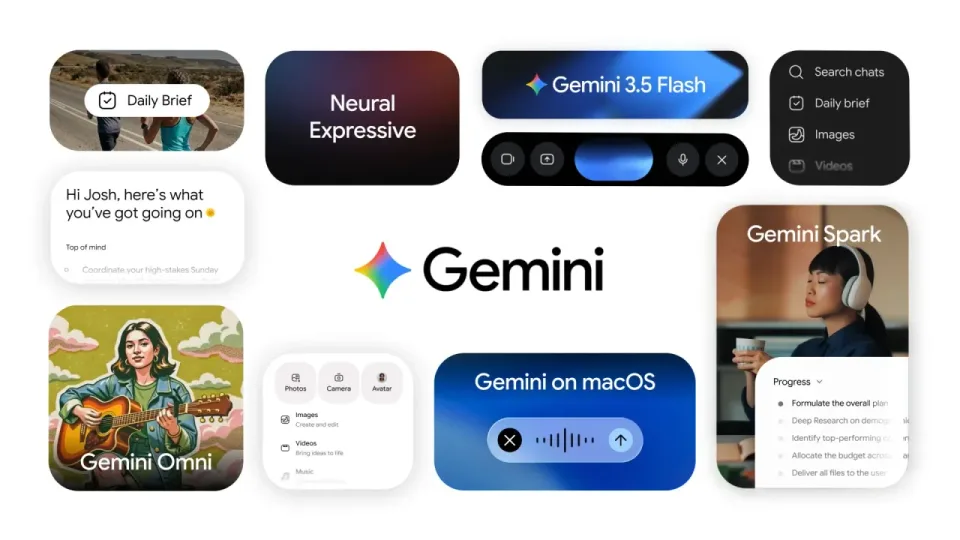
Image: Official art from Google’s Gemini computer use for Mac announcement. Credit: Google.