Fix an offline printer
Printer on, paper loaded, and Windows still says Offline? Work through Microsoft's fixes in order, from a 30-second restart to resetting the print spooler.


Few things are more annoying than a printer that is clearly on, clearly full of paper, and still listed as Offline in Windows, usually right when you need a boarding pass or a signed form. The fix is often simple, and Microsoft publishes a clear order of steps in its guide to troubleshooting offline printer problems in Windows.
Work through these in order and try printing after each one. Most printers come back by step three.
Step 0: Let Windows try first
On Windows 11, Microsoft recommends starting with the automated printer troubleshooter in the Get Help app. It runs diagnostics and tries to fix most printer problems on its own. If it solves things, you are done. If not, continue below.
Step 1: Restart the printer properly
Microsoft’s instruction is specific: turn off the printer, unplug it, wait 30 seconds, plug it back in, and turn it on. A full power cycle clears glitches that a quick press of the power button may not.
While you wait, check the obvious things Microsoft also mentions in its broader printer troubleshooting guide: low paper or ink, an open cover, or a paper jam.
Step 2: Make sure it is on the same network
This is the most common cause of “offline” with wireless printers. Microsoft says the printer must be on the same Wi-Fi network as your PC. Use the printer’s built-in menu to check its Wi-Fi connection, or look in the printer’s manual for how to join it to your network. Many printers also have a wireless connectivity test in their menu.
Microsoft adds an important note: if your home uses access points, extenders, or multiple routers with separate network names, make sure your PC is connected to the same one as the printer. A laptop on a separate “guest” network may not be able to see a printer on the main one.
For a USB printer, check that the cable is firmly connected at both ends.
Step 3: Set it as the default printer
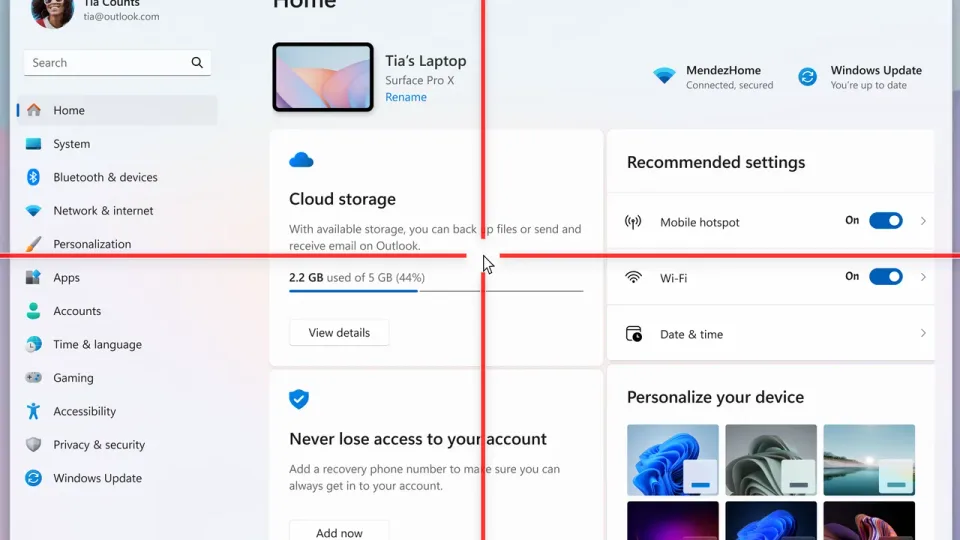
- Open Start > Settings > Bluetooth & devices > Printers & scanners.
- Select your printer, then Set as default.
If you do not see Set as default, Microsoft says the Let Windows manage my default printer option is probably on. Turn it off, then set your default manually. This stops Windows from quietly sending jobs to a different printer you used last.
Step 4: Clear the print queue
A stuck job can block everything behind it.
- In Printers & scanners, select your printer.
- Select Open print queue.
- Click the … menu and choose Cancel all.
Step 5: Restart the print spooler
The print spooler is the Windows service that manages print jobs. Microsoft’s quick reset:
- Click Search on the taskbar, type services, and open Services.
- Scroll to Print Spooler.
- Right-click it and choose Restart.
If jobs still will not clear, Microsoft’s longer guide describes stopping the spooler, deleting the files in the %WINDIR%\system32\spool\PRINTERS folder, and starting it again with Startup Type set to Automatic. Only delete files in that exact folder.
Step 6: Remove and add the printer again
- In Printers & scanners, select the printer, choose Remove, then Yes.
- Make sure the printer is on and connected.
- Next to Add a printer or scanner, select Add device and follow the prompts.
Microsoft notes you can print a test page afterward to confirm it works. If Windows cannot find it automatically, choose Add manually for more options.
Step 7: Restart your PC
Microsoft lists this last, but it is worth doing: restarting refreshes the services your PC uses to talk to the printer.
Still stuck? Check the driver
Microsoft says most printers need the latest driver to work well. Visit your printer maker’s support site, search for your exact model, and install their current software for Windows 11. If Windows shows “Printer in error state,” Microsoft says there may be a problem with the printer itself, so the maker’s support line is the next stop.
One special case: Microsoft notes that some ARM-based PCs, such as many Copilot+ PCs, may have trouble with a printer maker’s own installer. In that case, it suggests adding the printer through Windows Settings instead, unless the printer maker gives different advice. To check, go to Settings > System > About and look at System type.
Bottom line
When Windows says your printer is offline, run the Get Help troubleshooter, then power cycle the printer for 30 seconds, confirm it is on the same Wi-Fi as your PC, set it as default, and clear the queue. If that fails, restart the Print Spooler, remove and re-add the printer, and restart the PC. Most “offline” printers are just a network or queue hiccup away from working.
Image: Qutzl Insights abstract illustration of a printer; not a product image.