Trim Windows startup apps
Too many apps launching at sign-in slow your PC down. Here is how to see which ones matter, turn off the rest in Settings or Task Manager, and stay safe doing it.


If your PC takes forever to become usable after you sign in, the culprit is often a crowd of apps that all start at once: chat apps, game launchers, printer helpers, cloud sync tools, and updaters for programs you barely use. Microsoft says it directly in its guide to configuring startup applications in Windows: the apps that run automatically at boot can affect both how fast your PC starts and its overall performance.
Trimming that list is one of the easiest speed-ups there is, and it is completely reversible.
Option 1: Use Settings (simplest)
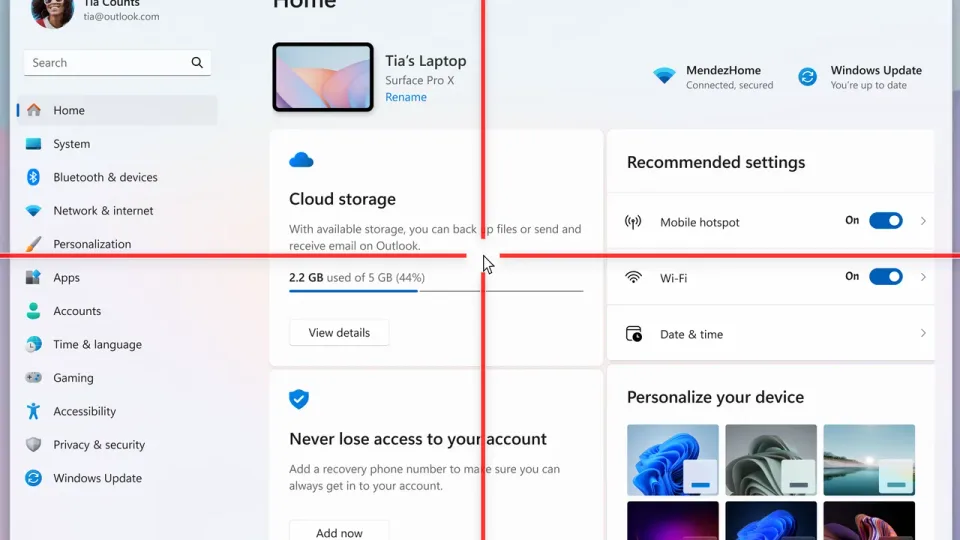
- Open Settings > Apps > Startup.
- Look through the list. Each app has a toggle.
- Set the toggle to Off for apps you do not need right away when you sign in.
Turning an app off here does not uninstall it. It just stops it from launching automatically. You can still open it from the Start menu whenever you want.
Option 2: Use Task Manager (more detail)
Task Manager shows the same list, plus how much each app slows your startup.
- Right-click Start and select Task Manager.
- Select the Startup apps tab.
- Select an app, then choose Disable (or Enable to turn it back on).
The Startup impact column is the useful part. Microsoft defines the ratings like this:
- High: more than 1 second of CPU time or more than 3 MB of disk activity at startup
- Medium: between 300 milliseconds and 1 second of CPU time, or between 292 KB and 3 MB of disk activity
- Low: less than 300 milliseconds of CPU time and less than 292 KB of disk activity
- Not measured: no data yet
- None: the app is disabled
Start with the High items. Turning off two or three of those usually makes a noticeable difference.
What to keep, and what to turn off
There is no universal list, but a few rules of thumb help.
Usually keep on:
- Your security software. Windows Security is built in. If you use another antivirus product, leave it alone.
- Cloud sync you rely on, such as OneDrive, if you want files backed up as soon as you sign in.
- Drivers and utilities for hardware you use daily, such as audio controls or a touchpad tool from your laptop maker. If you are not sure what something is, leave it on.
Often safe to turn off:
- Game launchers and store apps you only open occasionally
- Chat and meeting apps you can open when you need them
- Music and streaming apps
- Updaters and “helpers” for programs you rarely use
If you turn something off and later notice a feature missing, such as a tray icon or a hotkey, go back and turn it on again. Nothing here is permanent.
Uninstall what you never use
If you spot apps in the startup list you do not recognize or no longer want at all, uninstalling them is even better than disabling them. Microsoft’s guide to uninstalling apps in Windows gives two easy ways:
- From Start: select Start > All apps, right-click the app, and choose Uninstall.
- From Settings: go to Settings > Apps > Installed apps, find the app, and select More (…) > Uninstall.
Microsoft notes some apps built into Windows cannot be uninstalled, and that a few programs may need to be removed from Control Panel > Programs > Programs and Features instead.
Fewer apps also means less to keep updated, and more free space. Our guide to freeing up space in Windows 11 is a good next step.
A word of caution
Microsoft’s article also describes advanced startup locations, such as the startup folders reached with shell:startup and certain registry keys. These are useful for IT pros, but Microsoft warns that changing the registry can have unintended consequences. For home use, the Settings and Task Manager lists cover nearly everything you need.
If you see an entry in Settings labeled “We couldn’t find this app,” Microsoft says the app may be on a removable or network drive, may have been uninstalled, or may point to a path that no longer exists. Reinstalling the app often fixes it.
If you find startup entries you truly cannot explain, it is worth running a full scan with Windows Security just to be safe.
After you trim
Restart your PC and notice how long it takes before you can open your browser and start working. Most people see a real improvement from turning off just a handful of high-impact apps. If the PC is still slow, low disk space and pending updates are the next things to check.
Bottom line
Open Settings > Apps > Startup or the Startup apps tab in Task Manager, sort out the High impact apps, and turn off anything you do not need the moment you sign in. Keep security software and essential hardware tools on, uninstall apps you never use, and leave the registry alone. Your PC will be ready to work a lot sooner.
Image: Qutzl Insights abstract illustration of a power button with speed lines; not a Microsoft product image.