Gemini Notebook co-create: steer slides and video overviews before they render
On October 19, 2026 Google added co-creation controls to Gemini Notebook Slide Decks and Video Overviews, including a Review toggle. How home users try the new flow and what to check before you trust the output.

If you already dump PDFs, notes, and links into Gemini Notebook (Google renamed NotebookLM to Gemini Notebook in July), the new control surface matters more than another “AI made slides” headline. On October 19, 2026, Google said Gemini Notebook can now walk you through Slide Decks and Video Overviews before it renders the final artifact.
This is a creative-control update, not a browser security patch. It still belongs next to ordinary habits: keep the browser you use for Notebook current, and treat AI slides as a first draft you edit, not as something you paste into a school or family presentation unread.
What Google announced
Google’s product blog post, How to shape your slides and videos with Gemini Notebook (October 19, 2026), says:
- Gemini Notebook now offers more creative control from start to finish on Slide Decks and Video Overviews.
- Instead of jumping from one prompt straight to a finished artifact, Notebook can walk you through a short creation flow based on your sources.
- In chat, you can ask Notebook to create slides or a video overview. It suggests topics from your sources. After you confirm, you can steer content further and guide visual style and format.
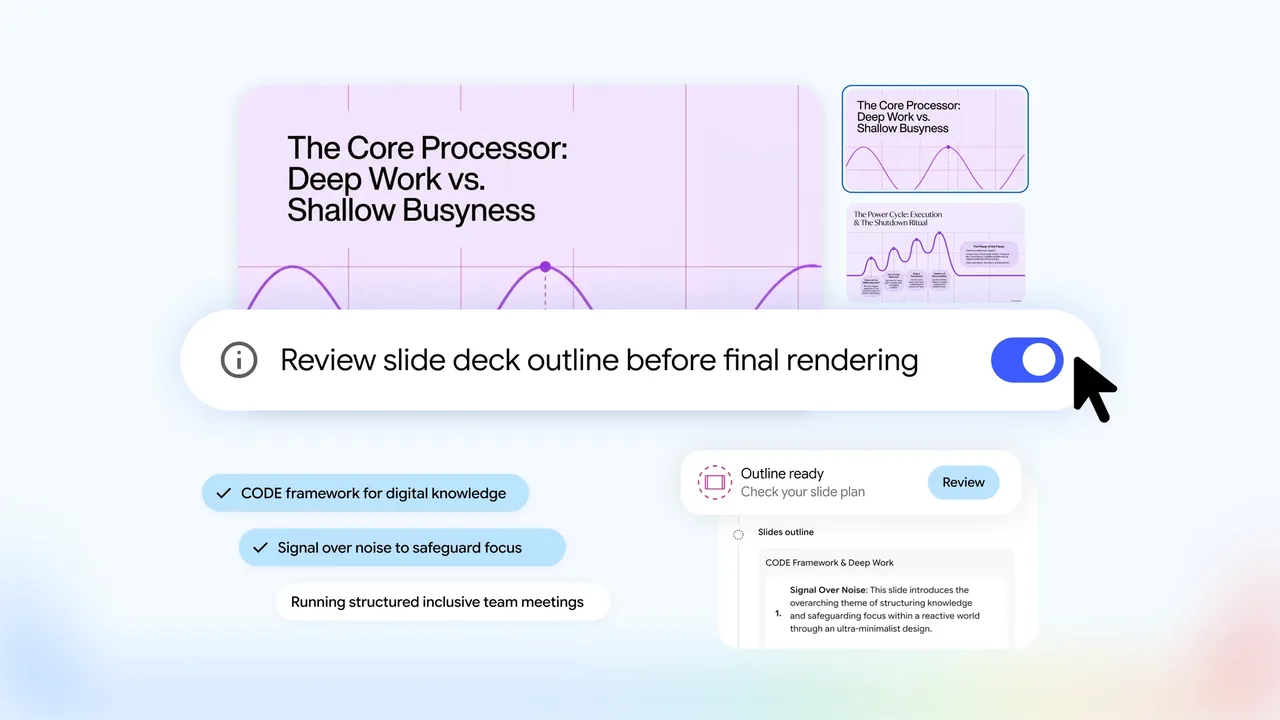
- A new Review toggle lets you inspect the plan in the studio panel (Review outline notes for slides, Review producer notes for video) and give extra feedback before anything renders. When the plan looks right, you select Proceed.
- If you already know what you want, you can say so in the prompt and skip ahead into the review flow.
- If you prefer the old quick path, you can still open the studio panel, click the artifact, skip the Review toggle, and generate as before.
- Google says these co-creation capabilities are rolling out globally to all Gemini Notebook users over the upcoming week.
That is the whole product claim. No new pricing line, no security CVE, no “available only on Pixel” limit in the post.
What this changes for a home user
Before: ask for slides or a video overview, get something rendered, then fight the result if the outline was wrong.
Now: you can force a checkpoint. Confirm topics, nudge style, reorder scenes, ask for an executive summary up front, then render.
That checkpoint is the useful part. AI decks still invent confident nonsense when your sources are thin. The Review toggle does not make the model honest. It gives you a cheaper place to catch bad structure before you spend time on the pretty version.
How to try it at home
- Open Gemini Notebook in a current browser on your own computer.
- Use a notebook that already has sources you care about (class notes, a trip plan, a recipe collection, a research PDF). Thin notebooks produce thin decks.
- In chat, ask it to create a Slide Deck or Video Overview.
- Confirm the suggested topics, then steer content, style, and format when the flow offers those controls.
- Turn on the Review toggle if you want the studio panel plan first. Use Review outline notes (slides) or Review producer notes (video), give feedback, then Proceed only when the plan is acceptable.
- If you already know the shape you want, say that in the first prompt so Notebook can jump to review.
- If you just want the old one-shot path, skip Review and generate from the studio panel as usual.
- Expect a staged rollout across about a week after October 19. If you do not see the controls yet, check again in a day or two before assuming your account is broken.
Keep browser hygiene in parallel. A Notebook feature does not replace updating Chrome, Brave, Firefox, or Edge when those vendors ship security builds. See our recent Chrome 155.0.8059.84 and Brave 1.97.59 notes if those are your browsers.
Practical habits when Notebook makes the deck
- Read the outline or producer notes before you hit Proceed. Fix structure there, not after you export.
- Prefer source-backed notebooks. If the PDF is messy, the deck will be messy.
- Treat every generated slide as editable. Check names, dates, and numbers against the original files.
- Do not paste a Notebook deck into a school assignment or family budget talk without a human pass.
- Keep sensitive personal documents out of cloud notebooks unless you are comfortable with that account and Google’s terms for the product you are using.
Do this / don’t do that
Do
- Use the Review toggle the first few times so you learn what Notebook plans before it draws pixels.
- Keep sources short and relevant when you only need a five-slide summary.
- Export, then edit in a tool you control if the stakes are real (grades, money, medical appointments).
Don’t
- Do not skip the plan review because the walkthrough video looked smooth on Google’s blog.
- Do not assume a global rollout finished on day one. Google said “over the upcoming week.”
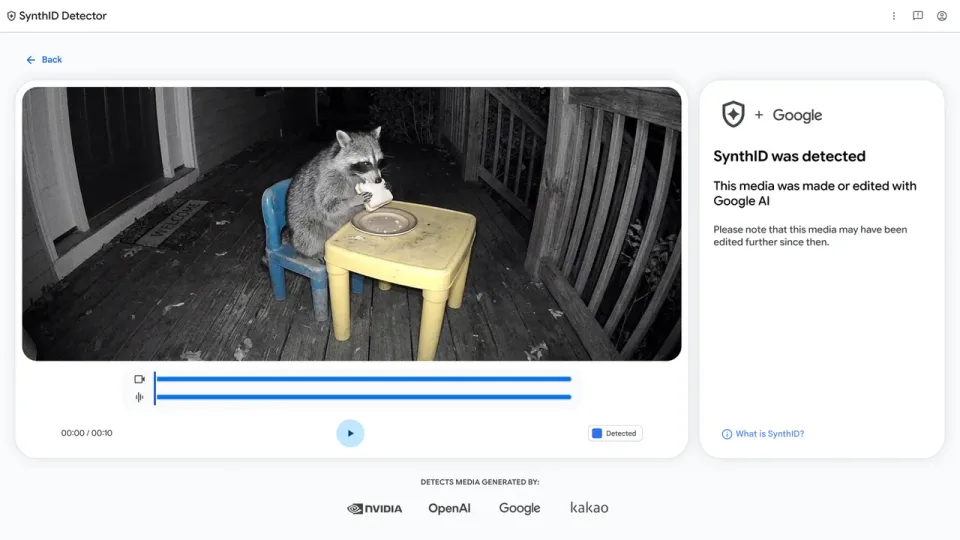
- Do not confuse this with SynthID Detector or other AI-media checks. Co-creation is about making decks, not verifying viral clips (our SynthID note).
- Do not ignore the browser you use to open Notebook. An outdated browser is still an outdated browser.
Bottom line
On October 19, 2026, Google added co-creation controls to Gemini Notebook Slide Decks and Video Overviews, including a Review toggle that lets you inspect outline or producer notes before rendering (Google blog). The rollout is global across about a week. On your own account: open a sourced notebook, ask for slides or a video overview, review the plan, then Proceed. Useful checkpoint. Still a first draft.
Image: Google Gemini Notebook co-creation blog artwork (blog.google).