Identity & AccessTutorial
Windows LAPS for SMB local admin passwords
How small offices rotate and escrow local administrator passwords with Windows LAPS through Intune — without a spreadsheet of doom on every workstation.

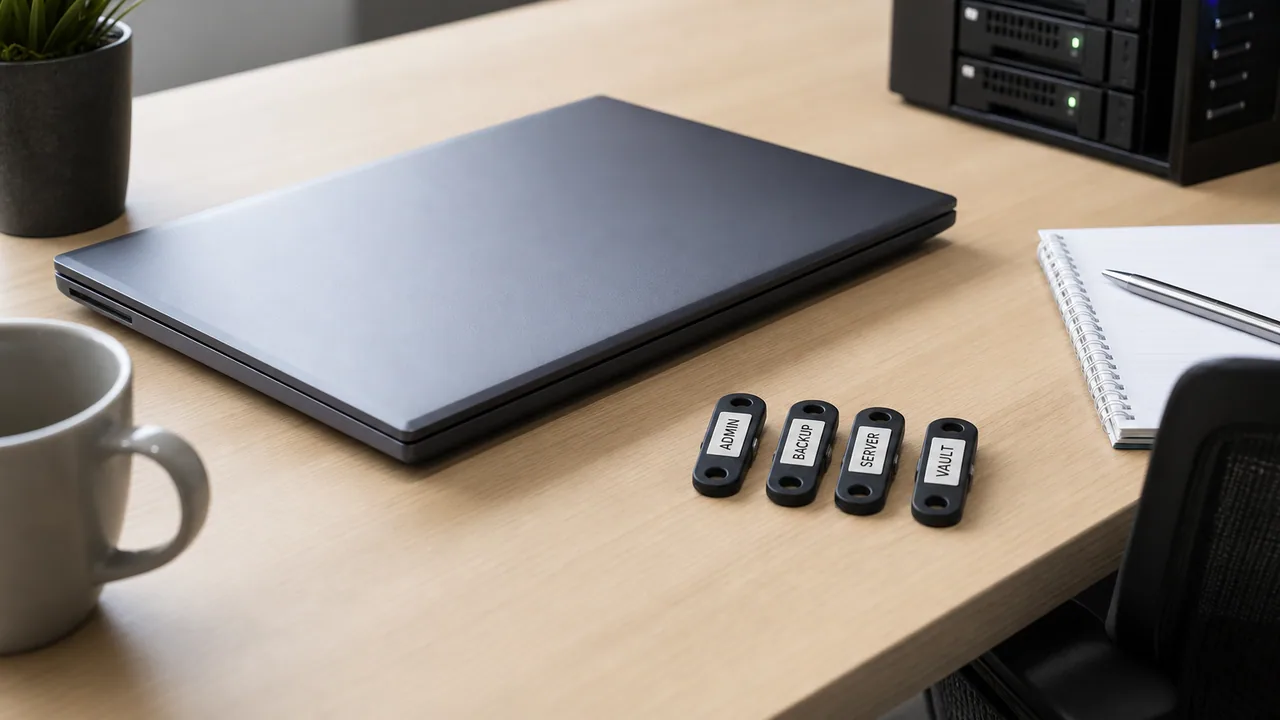
Every workstation with the same local admin password is a lateral-movement coupon. Windows LAPS (Local Administrator Password Solution) fixes that by rotating the built-in local admin password on a schedule and storing it somewhere your team can retrieve it — not on a sticky note under the keyboard.
For most SMBs on Microsoft 365 with Intune, the modern path is Windows LAPS via Intune, backed by Entra ID. You do not need on-prem AD to get value here.
1. Confirm prerequisites
Before you flip policies:
- Windows 10/11 Pro or Enterprise on managed devices (Home will not play nicely)
- Devices enrolled in Intune and syncing policy
- Entra ID P1 or higher for the LAPS cloud backup feature (check your licensing — many Business Premium tenants already have this)
- A clear decision on which local account LAPS manages (usually the built-in Administrator, sometimes a renamed local admin you standardized on)
If you still have hybrid AD, you can use on-prem LAPS or cloud LAPS — pick one model per device class. Mixed models confuse everyone at 2 a.m.
2. Enable Windows LAPS in Intune
In the Microsoft Intune admin center:
- Go to Endpoint security → Account protection (or Devices → Configuration depending on your portal layout)
- Create a Windows LAPS policy (or add LAPS settings to an existing account protection profile)
- Set Backup directory to Azure Active Directory for cloud-only SMBs
- Configure rotation interval (30 days is a reasonable default; shorter if you are hardening after an incident)
- Set password complexity and length — long and random beats memorable
- Assign the policy to a pilot group first, not “All devices” on a Friday
Give the pilot a day to report in. LAPS should not break daily work; it only changes the password your users never type.
3. Retrieve a password when you need it
When a tech needs local admin on a managed PC:
- Open Intune admin center → Devices → All devices
- Select the device → Local admin password (or use Entra Devices → device → Local administrator password)
- Copy the current password through the audited retrieval flow
Every retrieval should be logged. That audit trail matters when someone asks who accessed local admin on the CFO’s laptop.
Do not export LAPS passwords to a shared spreadsheet “for convenience.” You just rebuilt the same problem with extra steps.
4. Remove standing local admin from users
LAPS protects the break-glass local account. It does not replace removing everyday users from the Administrators group. Pair LAPS with:
- Standard user accounts for staff
- Separate admin accounts for IT (used only when needed)
- Just-in-time elevation if a line-of-business app truly requires it
Local admin for “so they can install Chrome” is a policy conversation, not a LAPS setting.
5. Verify rotation and document the runbook
After a week on the pilot group:
- Confirm passwords rotated on schedule in Intune reports
- Test retrieval on at least two devices (desktop and laptop)
- Add a short runbook: where to click, who is authorized, what to do if retrieval fails (sync device, check policy assignment, verify OS build support)
If retrieval fails during an outage, you want steps on paper — not a Slack thread.
Bottom line
Windows LAPS through Intune gives SMBs unique, rotated local admin passwords without a shared secret on every PC. Enable it on a pilot group, prove retrieval works, then roll out — and still remove standing admin rights from regular users. LAPS is for emergencies, not daily convenience.